HomeKit Bridge
Integrate Hubitat devices into HomeKit
The built-in HomeKit Bridge integration app (formerly called "HomeKit Integration") allows you to share devices from your Hubitat Elevation hub to Apple HomeKit®. This allows use of the Apple Home app or Siri® with devices from your Hubitat hub that do not natively support HomeKit.
Note that this integration is one-way: Hubitat devices can be shared to Apple Home. This does not allow sharing devices from Apple Home to Hubitat. Additionally, do not confuse this HomeKit Bridge app (or "HomeKit Integration" in platform versions before 2.4.2.129) with the HomeKit Controller Integration app (in platform 2.4.2 and later, C-8 Pro only), which allows pairing of HomeKit devices to Hubitat instead of Apple Home (see the HomeKit Controller Integration documentation for more information).
NOTE: As this integration is currently not certified, you will receive a warning that Hubitat is not a certified accessory when adding it to HomeKit.
Installing HomeKit Bridge
- From the sidebar of your hub, navigate to Integrations and select Add Integration or Add Built-In Integration:
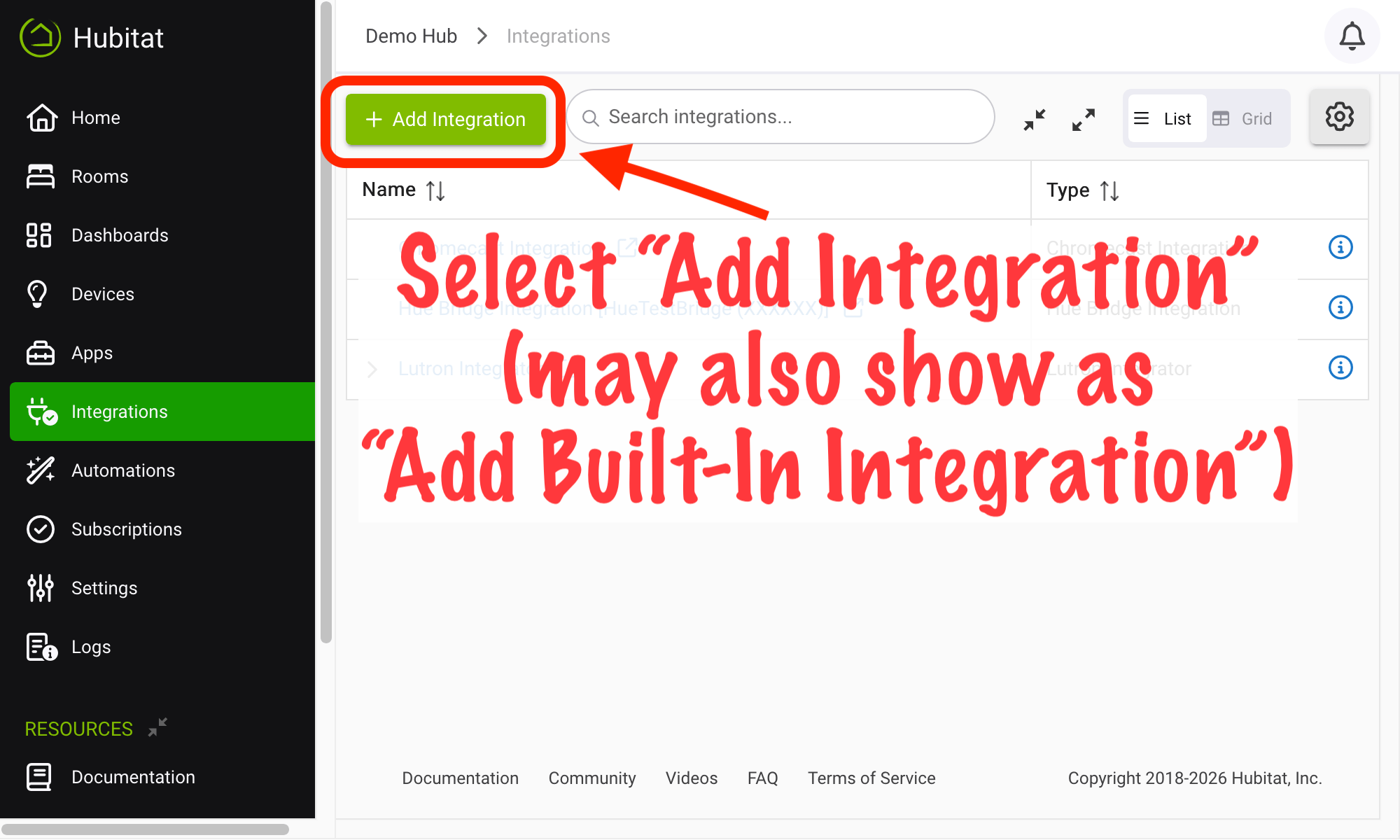
- Select HomeKit Bridge from the list of built-in apps.
Configuring HomeKit Bridge
- Inside the HomeKit Bridge app, select Enable HomeKit Integration (it is disabled by default).
- Choose devices to authorize by checking the box next to the device(s) and accepting the confirmation dialog. Note that devices are listed grouped by HomeKit device type (e.g., Contact Sensor, Fan, RGBW Light).
- NOTE: It is recommended to authorize only one or two devices at first, then verify everything works. If successful, you may return to to this step to authorize additional devices.
- Add your Hubitat Elevation hub to Apple Home:
- Open the Apple Home app.
- Select the “+” icon in the top right corner.
- Select Add Accessory, and scan QR code from the Hubitat HomeKit Integration app when prompted (scroll down to the bottom of the page on Hubitat to see it, and note that the code will not be displayed if you have not authorized any devices).
- If successful, you may authorize more devices by repeating step 2 above as needed.
When adding or removing devices, it may take 20-30 seconds for the changes to be reflected in HomeKit. The Home app, if open, may also need to be closed and re-opened.
Disabling HomeKit Bridge
To disable the HomeKit Bridge integration app, return to the HomeKit Bridge app by navigating to Apps > HomeKit Integration. Then, select Disable HomeKit Integration and select OK on the prompt to confirm. This will prevent Hubitat from communicating with HomeKit, and your devices will appear in Home as non-responsive.
You may re-enable the integration at any time by selecting Enable HomeKit Integration, and devices should work as before.
Disabling the integration will prevent any Hubitat devices from working in HomeKit. As such, this should be done only for troubleshooting or if you do not have any Hubitat devices added to HomeKit and want to disable the integration on your hub.
Device Compatibility
Most devices are supported, depending on the matching of Hubitat device "capabilities" to HomeKit "characteristics." However, the following classes of devices are specifically not compatible:
- Devices shared via Hub Mesh are not supported on linked hubs (share them from the source hub instead).
- Devices added to Hubitat via Matter are not supported; such devices should be added to Apple Home first and then additionally added to Hubitat, or any other supported option described in How to use Matter on Hubitat Elevation.
Advanced Options
-
Restart integration: reloads devices and restarts HomeKit integration on Hubitat
-
Factory reset: resets the HomeKit integration but keeps the existing pairing code/QR code
-
Reset QR and pairing code: unpairs the integration app from HomeKit; any devices integrated via this app will no longer function in HomeKit and would need to be removed and re-added after re-pairing the hub in order to function again
-
Show accessory classes and characteristics:
- Displays HomeKit "characteristics" for the device based on the Hubitat capabilities the driver offers. This allows you to:
- export it as a different type of device (e.g., a switch instead of a dimmer if you need only on/off and not level control); and/or
- remove certain capabilities (e.g., temperature from a motion sensor if you only care about motion).
- Also offers "Move to ignored list" option, which will remove the device from the groups of HomeKit device types to a new group called "Ignored devices"; to undo, scroll to the "Ignored devices" section and select "Do not ignore" on the device.
- Displays HomeKit "characteristics" for the device based on the Hubitat capabilities the driver offers. This allows you to:
-
Restart hourly: Restarts the HomeKit integration on the hub once per hour (can be used to workaround recurring "not responding" problems in Home app if a Restart integration above fixes the problem)
-
Export mode switch: Adds a switch with the ability to change hub modes to HomeKit. (See the notes in the HomeKit Integration app when this option is enabled for more details.)
Other Notes
-
You may wish to have an Apple "home hub" to enable use of HomeKit devices while away from home and other HomeKit features. However, this is not required (nor is the requirement of an Apple home hub for this purpose an issue specific to Hubitat Elevation).
-
This integration does not allow selecting more than 150 devices to share to HomeKit from a single hub, per HomeKit limitations for a single HomeKit bridge device.
HomeKit, Apple, and Siri are trademarks of Apple Inc., registered in the U.S. and other countries and regions.