Device Firmware Updater
Device Firmware Updater
NOTE: In platform version 2.5.0 and newer, Z-Wave firmware updates are now performed using the Device firmware updater button from the Settings > Z-Wave Details page, and this app is no longer available. The below information is applicable to older platform versions only.
With the Device Firmware Updater app, you can update firmware on your Z-Wave devices by downloading the appropriate firmware file from the manufacturer, uploading the file to the hub using this app, and then using this app to transfer the firmware to the device. This app supports devices joined with or without security and supports firmware file types HEX, OTZ, BIN, and GBL.
This app is compatible with hub models C-7 and newer only.
Prerequisites
- Z-wave device that is Over the Air (OTA) capable and supports Firmware Update MD Command Class V1 or newer
- Good connectivity between the device and your Hubitat Elevation hub
Warnings
- Z-Wave devices and firmware are region-specific. Make certain you have the firmware file that is correct for your region (and device).
- Some devices will need to be reset or excluded and re-included after the firmware update is complete in order to function again.
- Do NOT power cylce the device until after the firmware updater app notes that it is complete.
Installing the Device Firmware Updater app
-
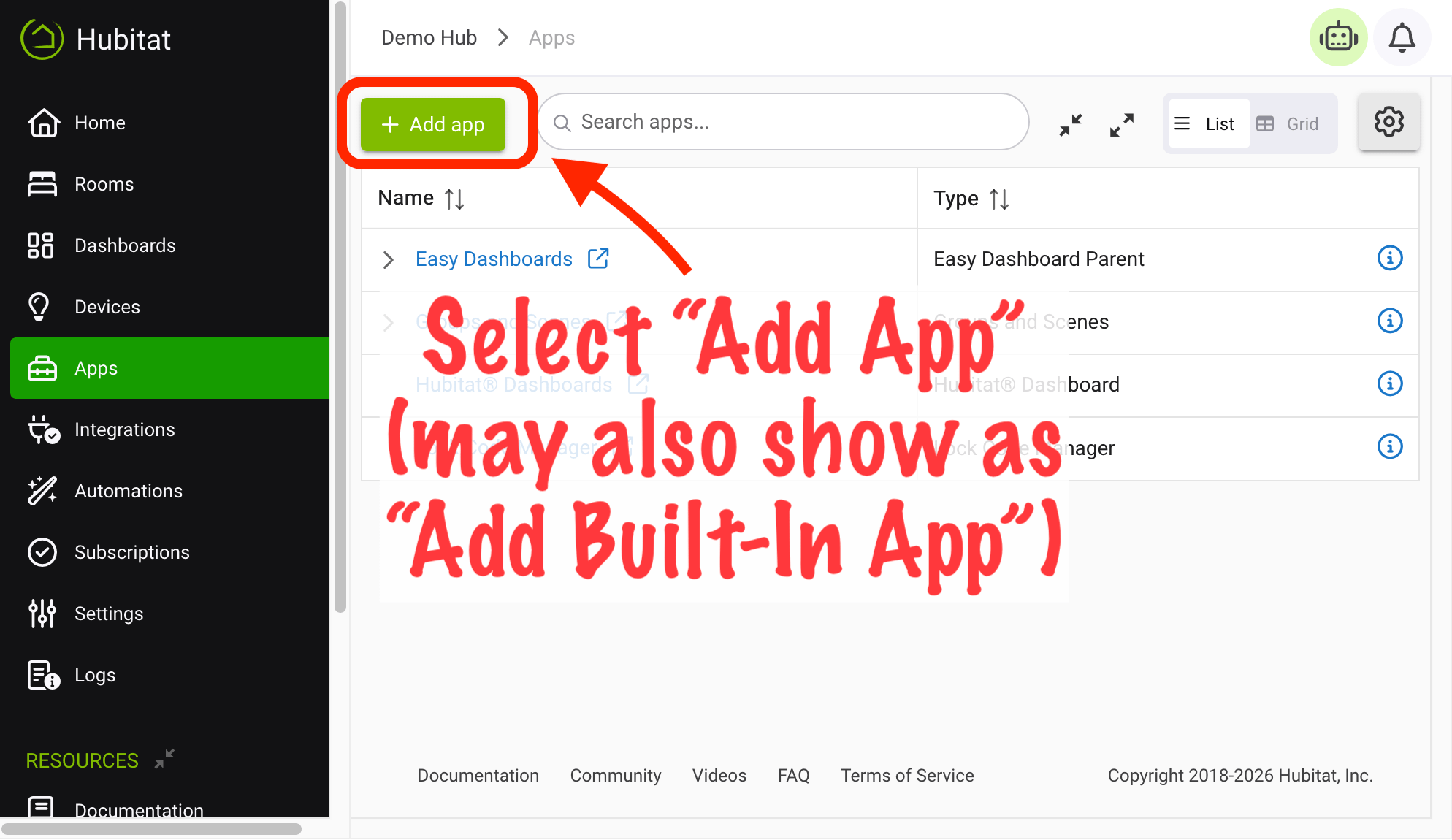
From the sidebar of your hub, navigate to Apps and select Add Built-In App.
-
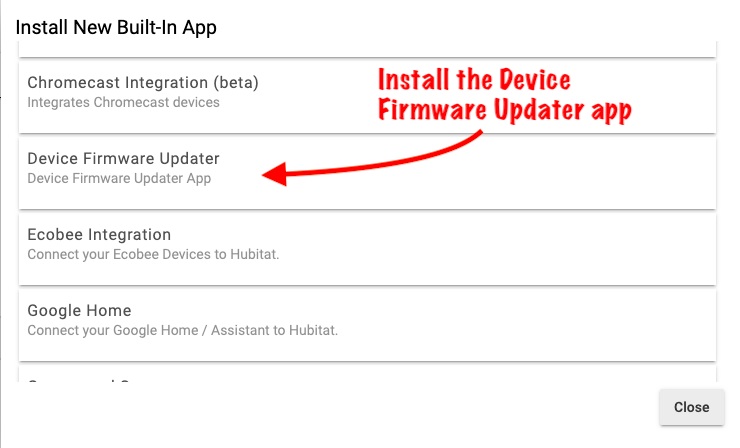
Choose Device Firmware Updater from the list of Hubitat Elevation built-In apps.
Uploading device firmware to the hub
- Download the device manufacturer firmware update file and store it on your computer. Supported firmware file types are HEX, OTZ, BIN, and GBL.
NOTE: Hubitat does not supply Z-Wave device firmware files. You must obtain these from the device manufacturer.
-
In the Device Firmware Updater app (see above to install if it is not already added), select Firmware File Manager.
-
Select the Choose button, then navigate to the correct firmware update file for your device. (Alternatively, drag and drop a file into the indicated area.)
-
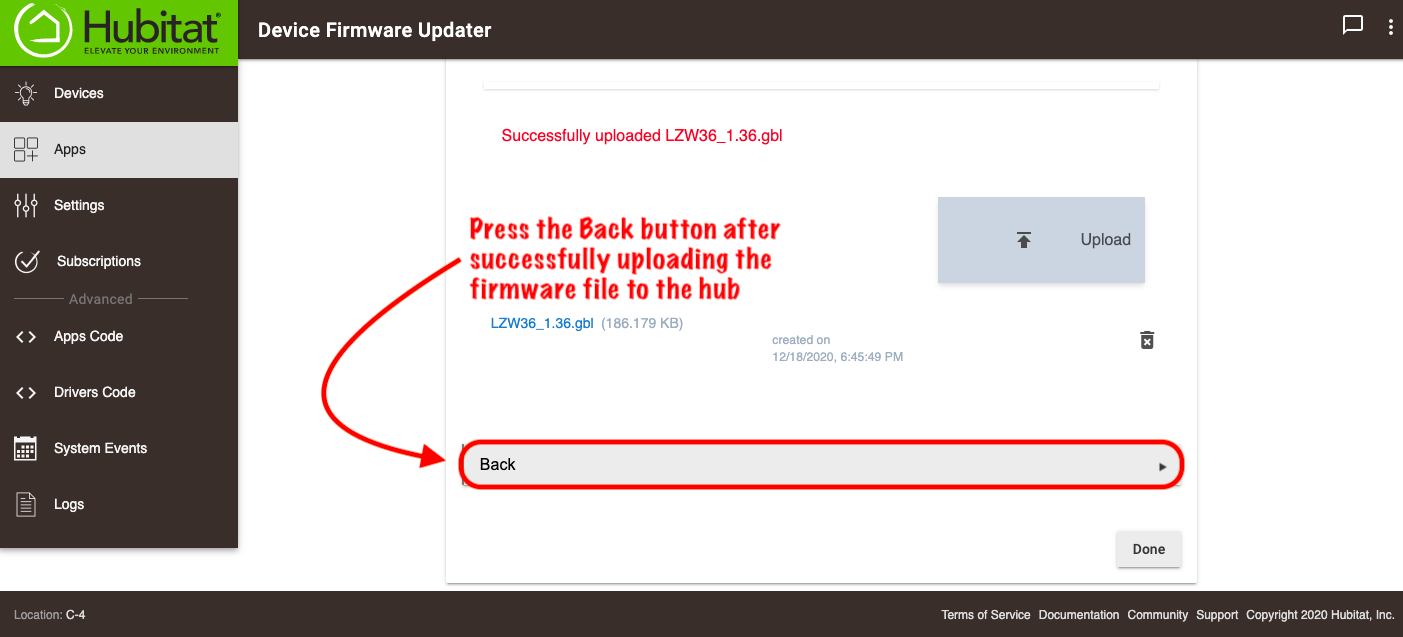
Select the Upload button and wait for the green "Successfully uploaded file name" message to appear before continuing.
-
Select the Back button to return to the main Device Firmware Updater app page.
-
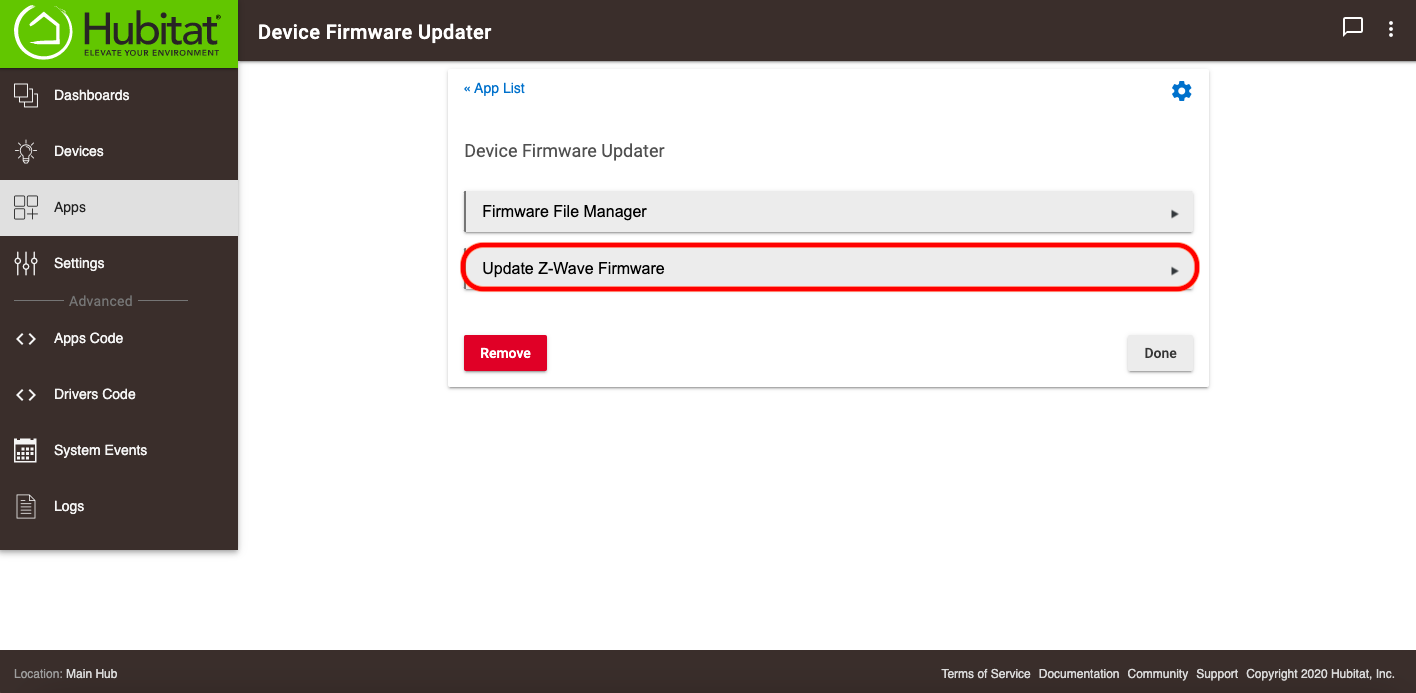
Select the Update Z-Wave Firmware button.
-
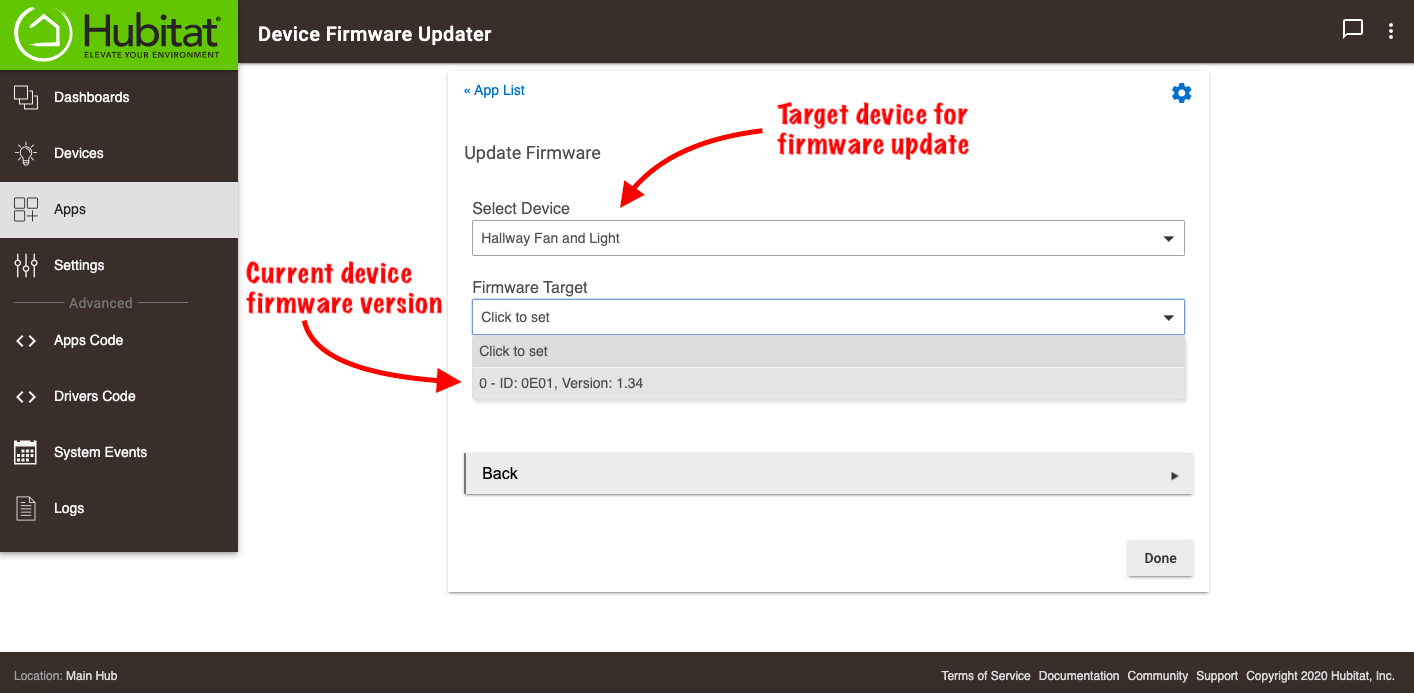
Choose the device for the firmware update and choose the firmware target to update (the current firmware version is displayed next to each target in this list for reference). Most devices have only a single target, and the manufacturer will usually specify which file(s) to use for which targets in other cases.
-
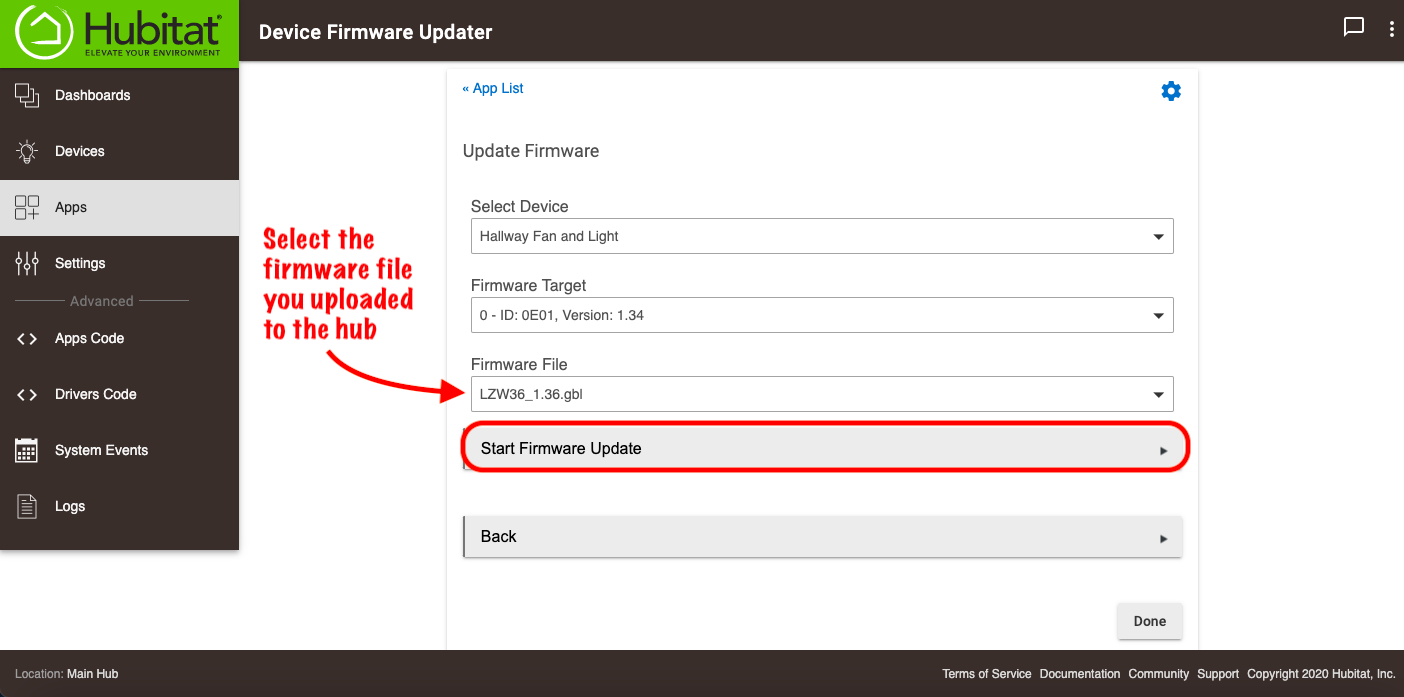
Choose the device firmware update file you uploaded to the hub, then select the Start Firmware Update button to begin.
IMPORTANT: Battery powered devices frequently "sleep" to preserve battery power, and you may need to "wake" them a few times before the process can complete. Refer to the manufacturer instruction manual to determine the wake-up procedure for your particular device.
You must also disable the device for sleepy devices to prevent the driver from sending
wakeupNoMoreInformationduring the update process. Mains-powered devices are not "sleepy" and do not require that their driver be disabled.
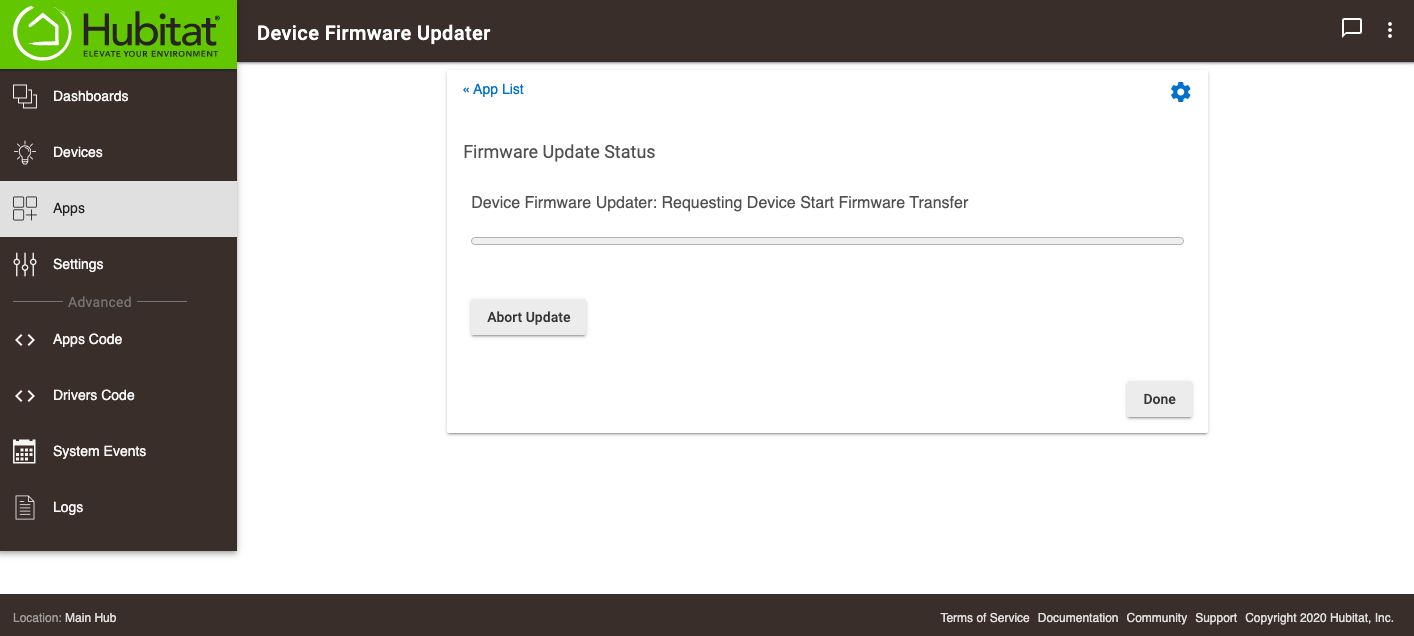
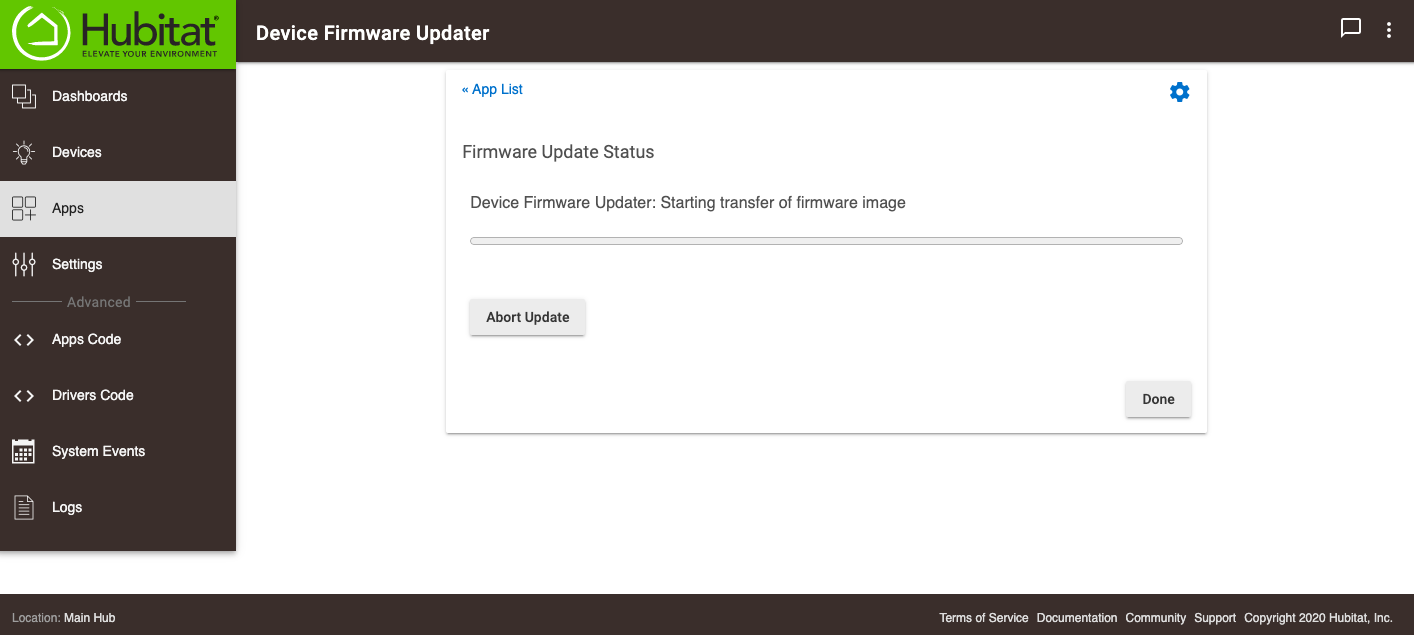
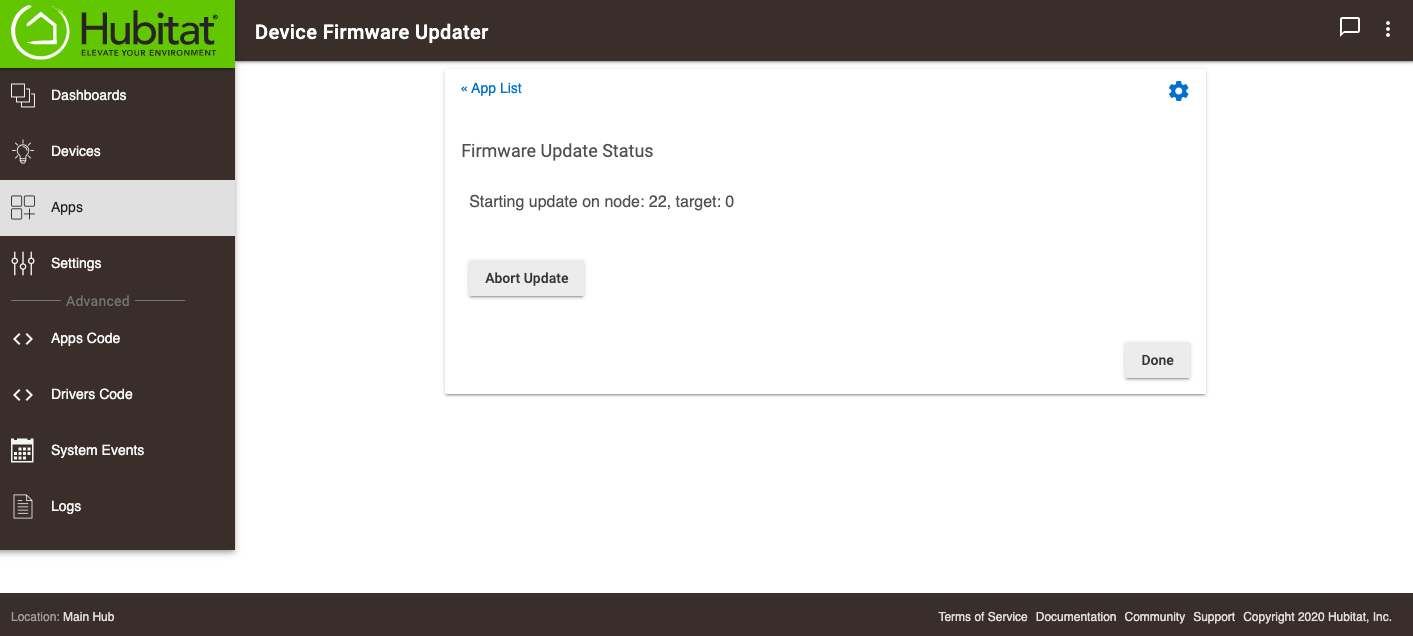
- NOTE: Some devices will update very slowly when device security is enabled. Additionally, the firmware update protocol is designed to ease off if there is an increase in network activity. Factors such as network conditions, the number of hops from the hub to the device, and distance will all have an influence on the amount of time required to complete the firmware update. The maximum size of a frame is 64 bytes. The protocol header and checksum takes 10 bytes in a single cast, leaving 54 bytes for the payload. An S0 security enabled single cast takes 20 bytes as overhead. The maximum dataLength field depends on the transmit options and whether a nonsecure or secure frame is used. Therefore if there is no security enabled, the firmware can be sent to the device in larger chunks and the overall update process will be faster.
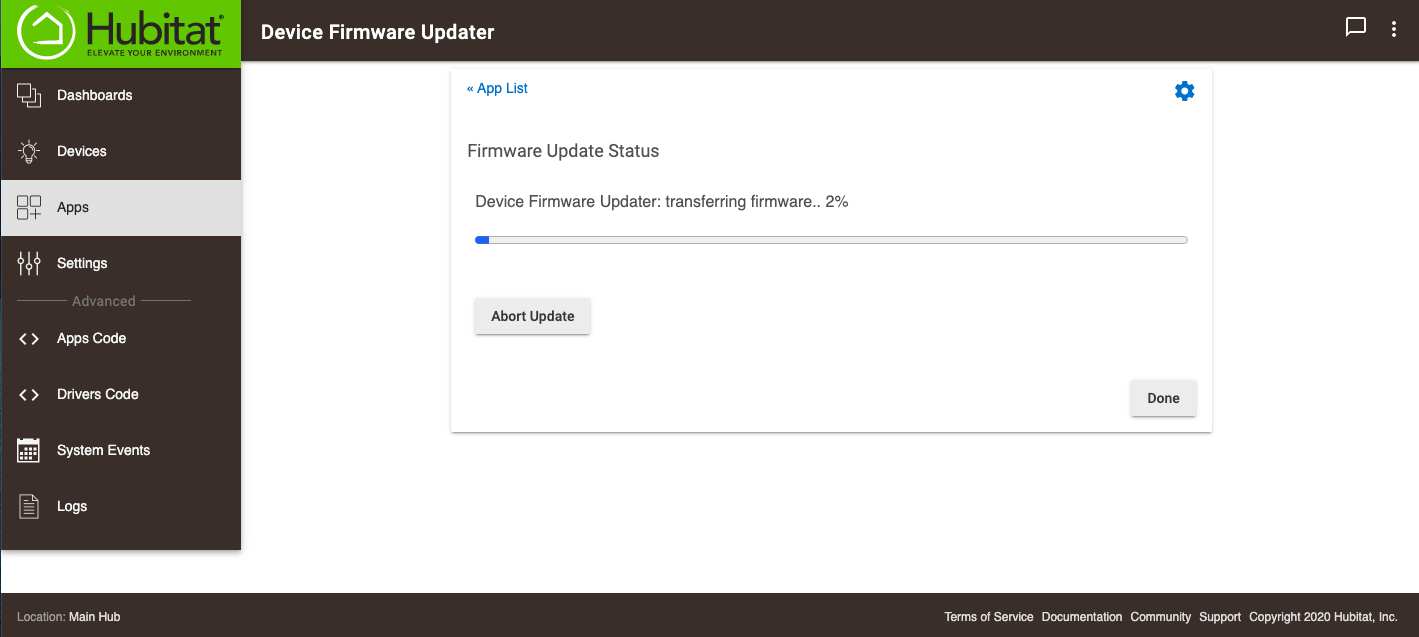
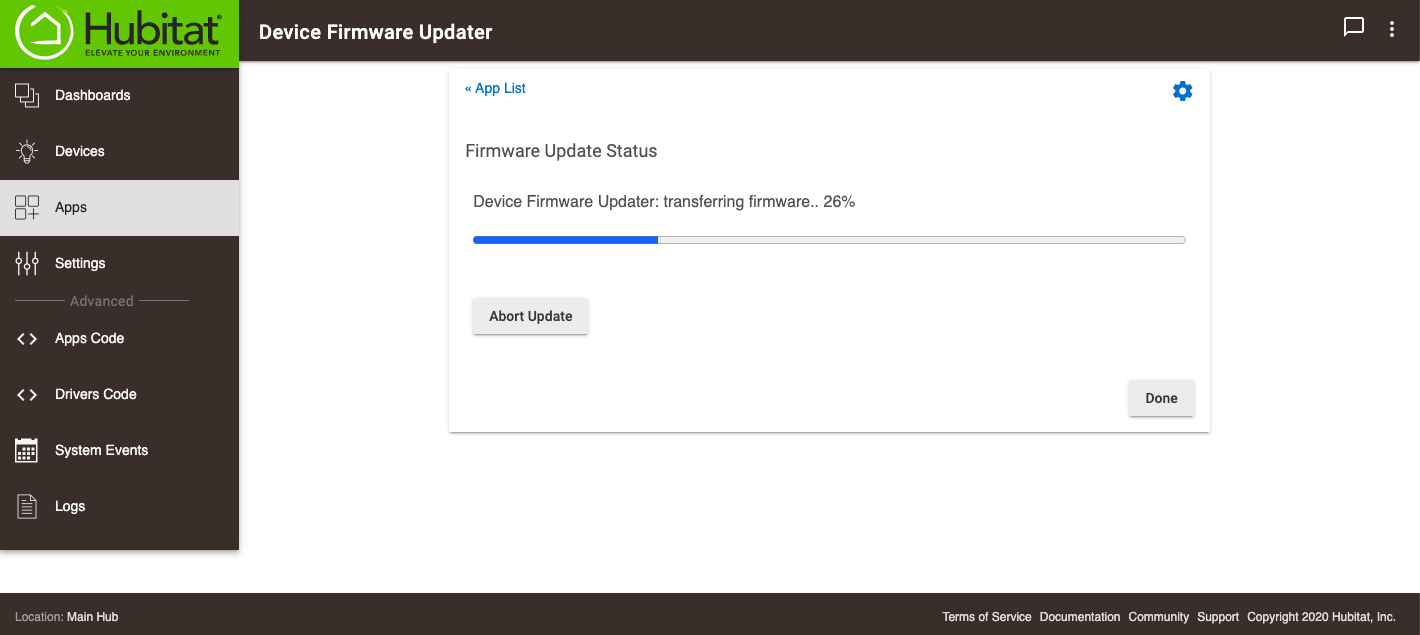
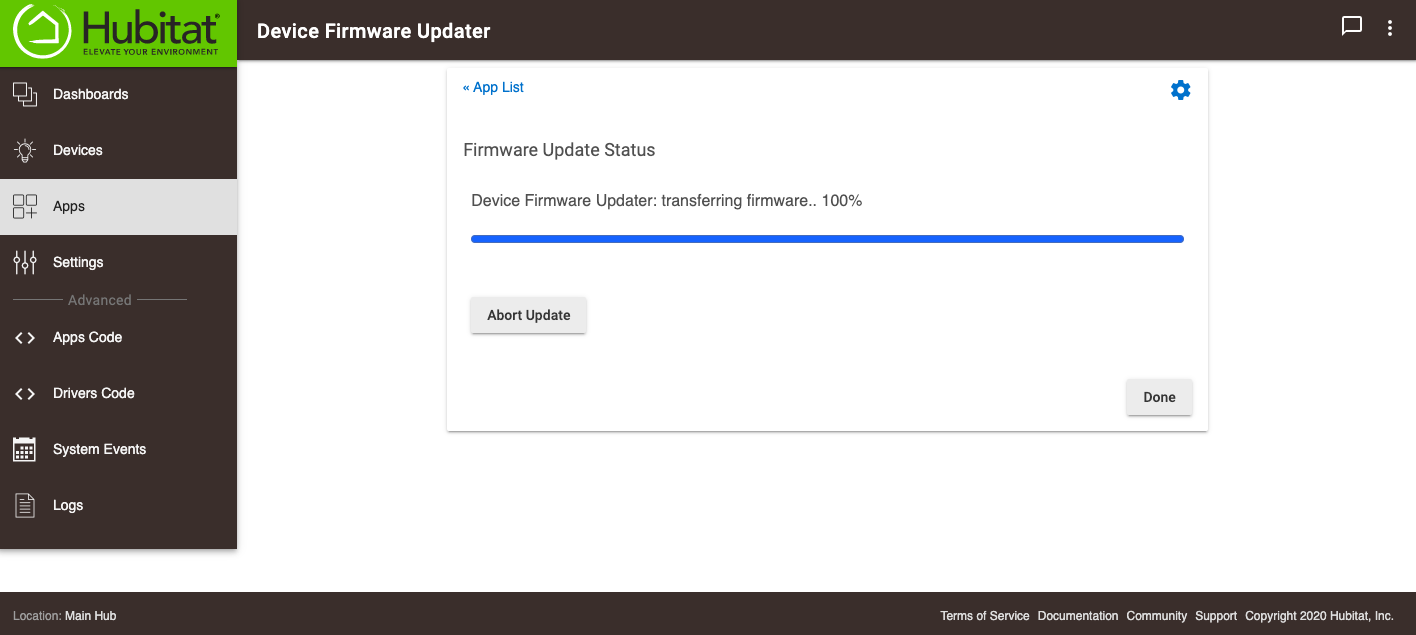
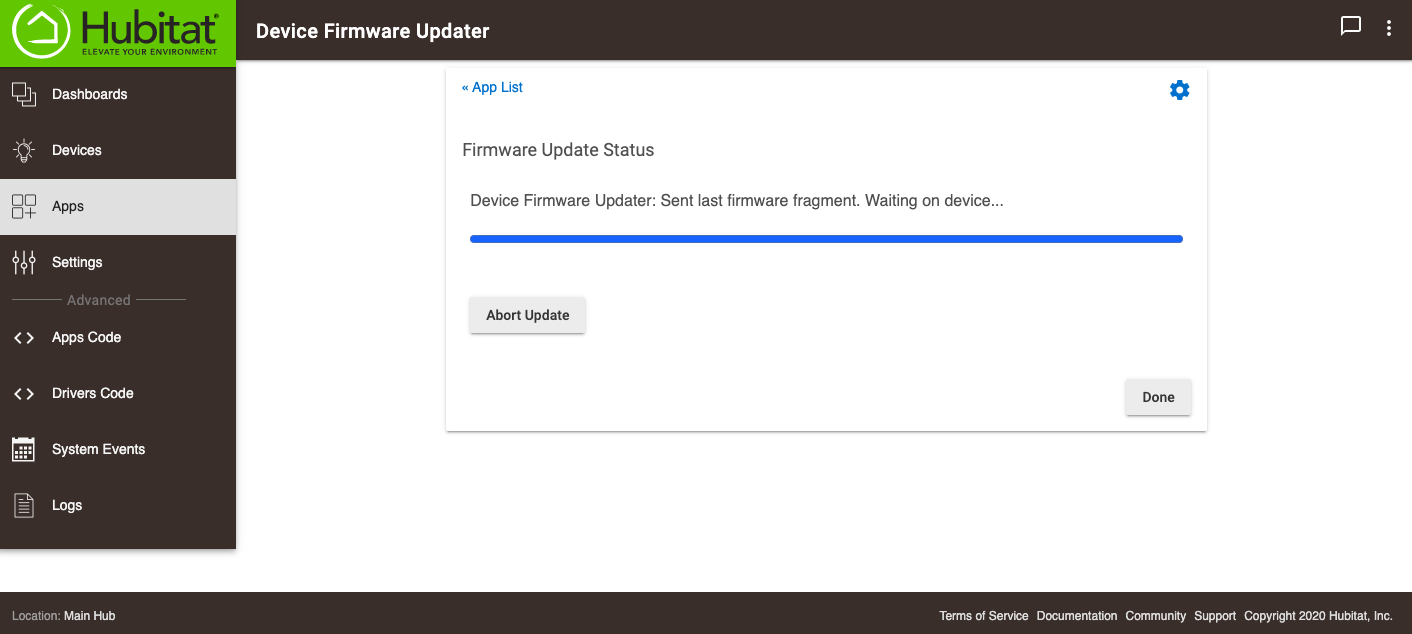
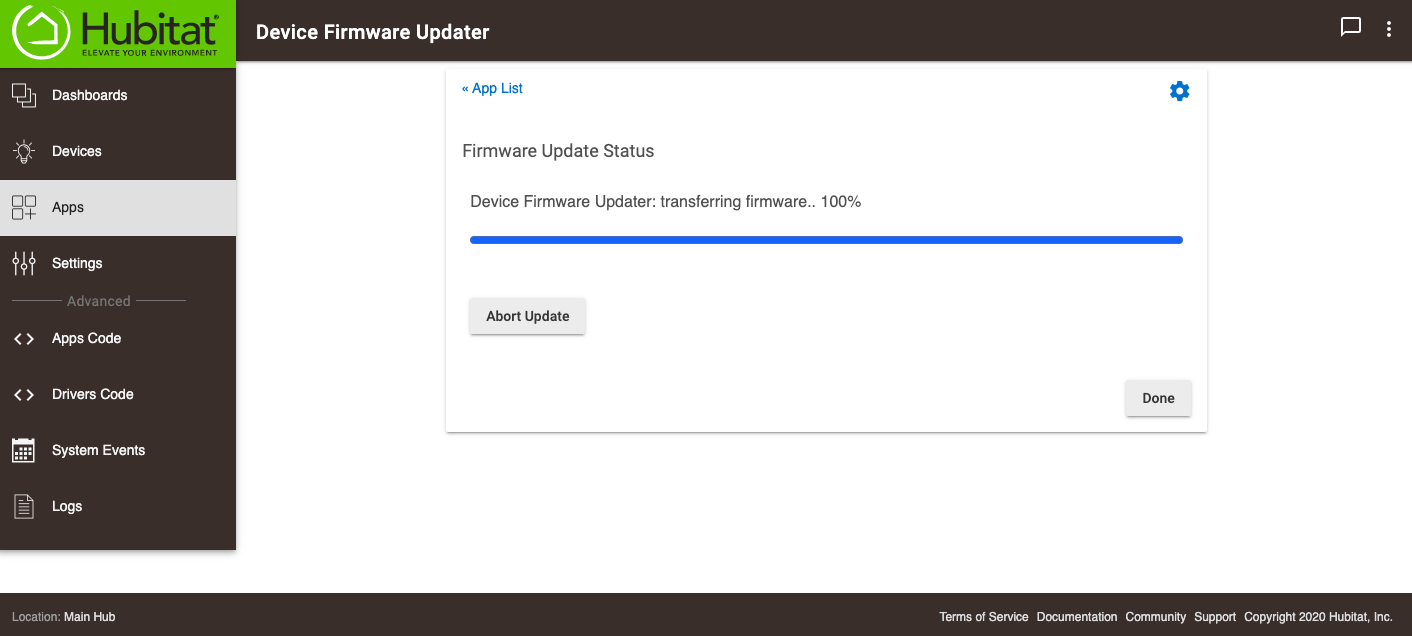
WARNING: Do not power cycle the device until after the update is complete.
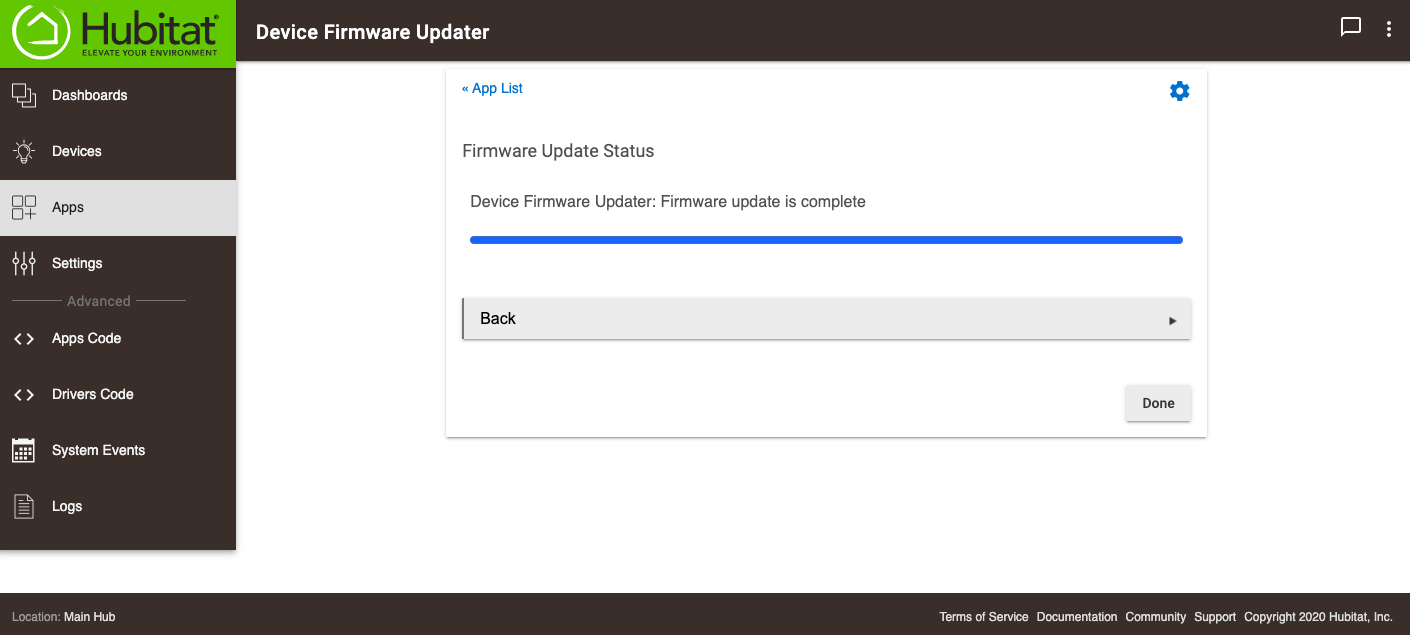
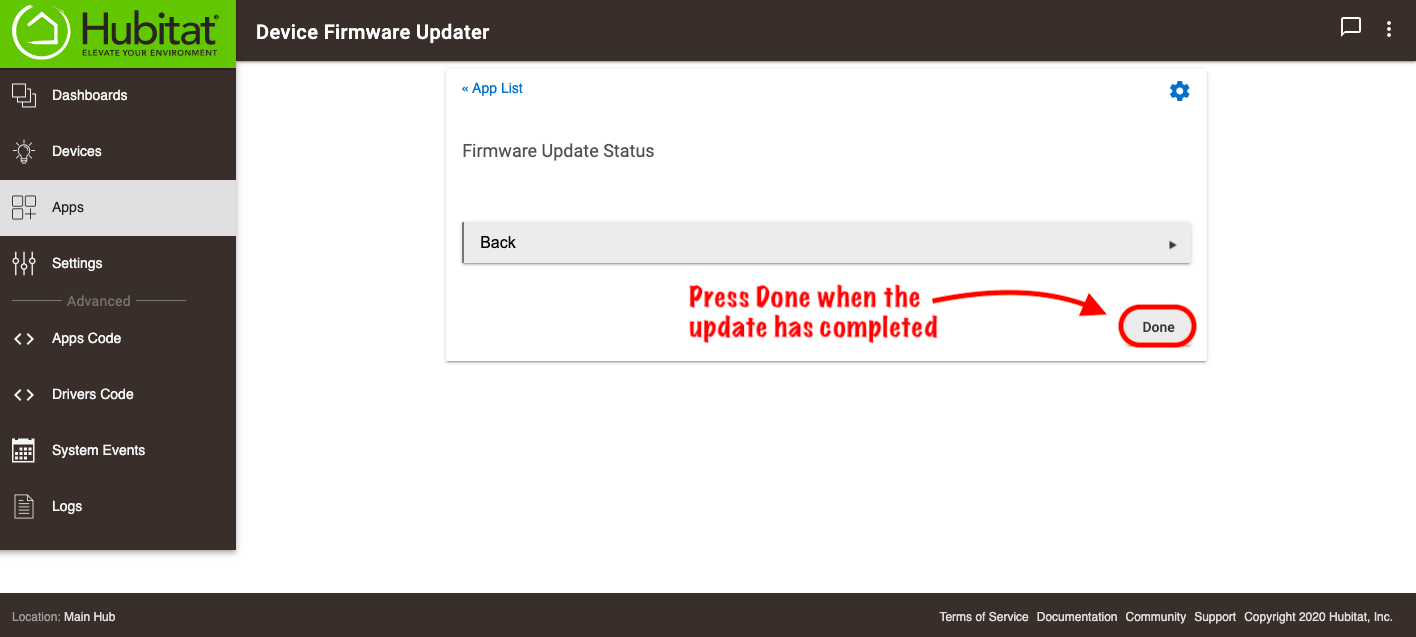
- Select Done to exit the Device Firmware Updater. For best results, you should power cycle your device some time after the firmware update is complete.