Hue Bridge Integration
Learn how to use the Hubitat Hue Bridge Integration app to bring Hue Bridge lights and groups into Hubitat
Hue Bridge Integration
It is recommended to use a Hue Bridge when connecting Hue bulbs to Hubitat Elevation for optimal results. Even though Hue bulbs use Zigbee and can talk directly to your hub, they may interfere with the routing of the Zigbee network traffic when connected directly to Hubitat Elevation without a bridge. Once connected through the Hue Bridge Integration app, your bulbs can be used just as if they were directly paired with your hub.
Your Hue devices must first be configured in the Hue mobile app before they can be added to Hubitat (that is, Hubitat cannot be used to set up your Hue system itself). Once you have your Hue system set up, you can add devices and other features from your Hue setup into Hubitat by following the steps below.
Installing the Hub Bridge Integration app
-
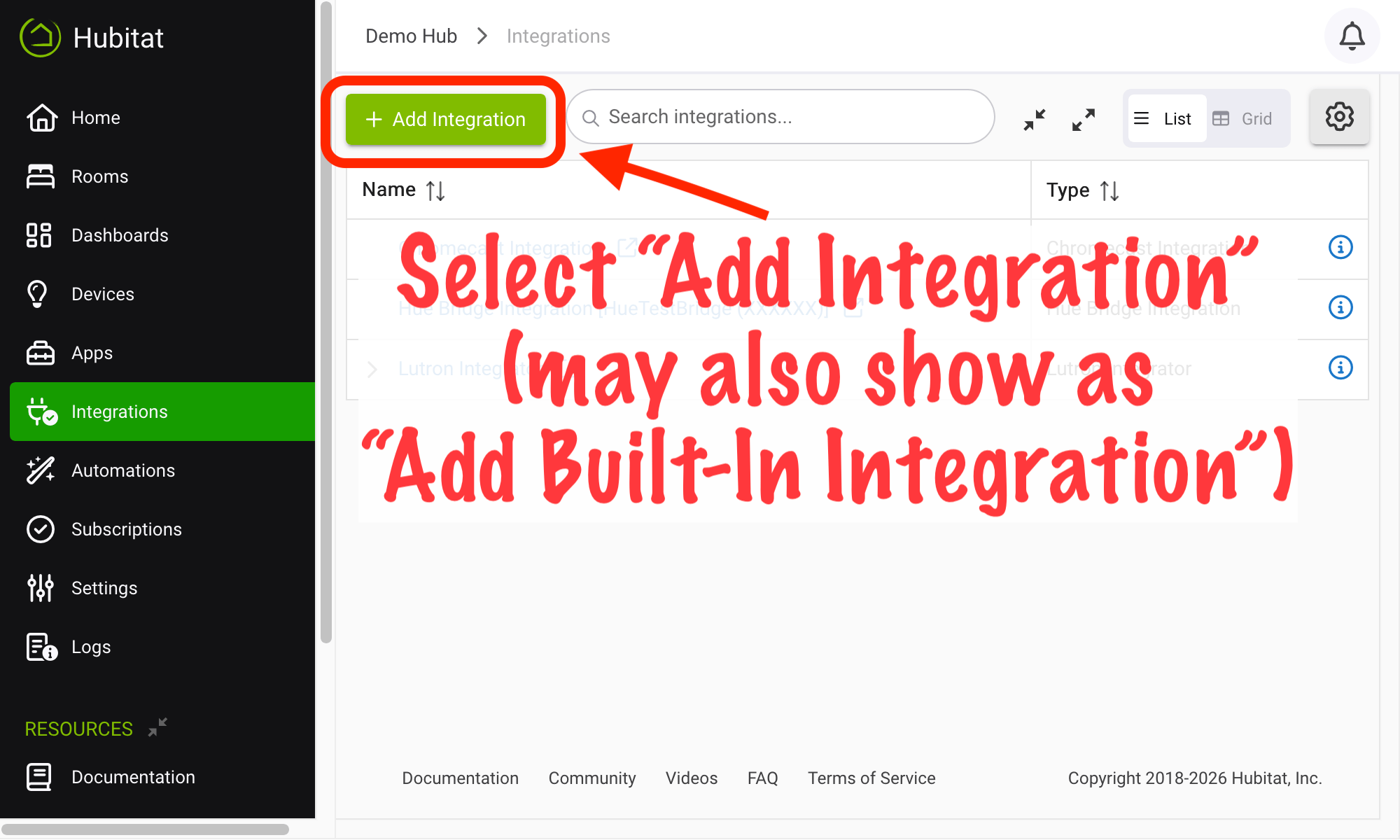
From the sidebar of your hub, navigate to Integrations and select Add Integration or Add Built-In Integration:
-
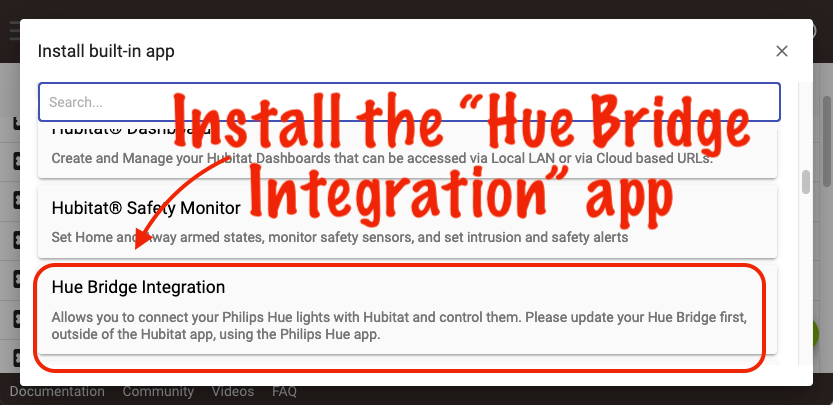
Choose the Hue Bridge Integration from the list of built-in apps
-
Discovery of your Hue Bridge(s) will begin.
- NOTE: Please be patient, as discovery may take several minutes.
-
Select your Hue Bridge from the "Discovered bridges" list, then select Next to continue. Press the button on top of your Hue Bridge shortly before or after doing this to authorize the connection.
- NOTE: If you want to integrate multiple Hue Bridges, you can do so by adding an additional instance of the Hue Bridge Integration app for each Bridge. A single instance of the integration app can be associated with only one Bridge.
-
Within a minute, the app should note that the Bridge has been linked to your hub. When this confirmation appears, select Next to begin adding lights and other devices from the Hue Bridge to your Hubitat Elevation hub.
Adding Hue devices to Hubitat
The Hue Bridge integration supports adding the following Hue features or devices to your Hubitat Elevation hub:
- Lights (bulbs, lightstrips, outlets, etc.)
- Groups (Hue Rooms and Hue Zones)
- Using Hue Rooms or Zones (groups) is recommended over creating a Hubitat group (e.g., via Groups and Scenes or a Room Lighting activator device) whenever possible, as it will reduce the "popcorn effect" of lights changing at slightly different times and create less traffic and more reliability between Hubitat and the Hue Bridge and the Hue Bridge to the Hue devices
- Scenes
- Only scenes associated with a Room or Zone are supported (not legacy "LightScene" scenes)
- It is also recommended to use Hue scenes over Hubitat scenes (e.g., via Groups and Scenes or a Room Lighting activation table containing multiple Hue devices) whenever possible for similar reasons as groups, above
- Motion, including:
- Motion sensors (Hue Indoor or Outdoor motion sensor)
- MotionAware zones
- Camera devices (currently "security" motion only; Signify does not document when this is used and availability likely varies depending on configuration in Hue mobile app)
- Contact sensors (Hue Secure door/window sensors)
- Button/rotary devices (Hue Dimmer, Hue Tap Dial/Mini Tap Switch, Lutron Aurora, etc.)
To add a new device from your Hue system to Hubitat, open the Hue Bridge integration app from the Apps list and select the appropriate option on the main page, e.g., Manage Lights to add new bulbs, lightstrips, or outlets. (No devices you add to your Hue Bridge are automatically added to Hubitat, nor are devices you remove from the Hue Bridge automatically removed from Hubitat. Devices can be removed from their device detail page if desired, whether or not they exist on your Hue network.)
Some features above require use of the V2 API, which is available on the Hue Bridge V2 and newer (inclding Bridge Pro; see below for more details on this setting). This is the default for new installs and the recommended configuration for users upgrading from older versions. These features include Smart Scenes (accessible on Scenes page), motion devices of any kind, contact sensors, and button/rotary devices.
App Options
The Hue app presents various options to configure how the integration app and drivers work, including:
-
Prefer V2 Hue API (EventStream/Server-Sent Events) if available: Uses the Hue V2 API, supported on Hue V2 bridges with firmware 1948086000 or newer and Hue Bridge Pro. Firmware 1955082050 (for V2 Bridge) or later is required for use of this option with this integration. The Hue mobile app can update your Bridge firmware if needed.
- This option is enabled by default, but the app will still try the V1 API if your Bridge hardware or firmware is too old to support V1. This option is required for the Hue Bridge Pro and is likely to become required with future Hue Bridge V2 firmware.
- The V2 API is recommended for Bridges that support it because it allows for instant status updates from Hue lights and groups (V1 API requires polling to see changes made from outside Hubitat) and also enables support for motion sensors and button devices. As a result of the status updates, scenes may also work better (if you depend on timely updates on your hub of light or group states that belong to the scene).
- Once enabled and your Bridge devices gets added to your hub, this option cannot be disabled. The same is true if you disabled the option initially (and proceeded to set up the integration), then enable the option later. Note that this setting is not saved until Done in the app is selected.
- Before enabling this setting on an existing setup, it is recommended to download a hub backup in case you wish to return to the old setting.
- The V1 (circular) Hue Bridge does not support the V2 API (and is no longer supported by Philips but should continue to work with this integration, which supports both API versions). However, you may need to explicitly disable the "Prefer V2 Hue API..." option, above.
-
Use V1 API for polling on Bridge (if polling enabled)...: Uses the Hue V1 API for polling (if configured; see next setting). This setting is displayed only if the V2 API is enabled (you will see only this option or the above option to enable V2). Enabling this setting is the default and is recommended for now, although we may change this recommendation in the future as the integration continues to use more of the V2 API data (particularly color and color temperature data, the main advantage of V1 parsing at the moment). This setting affects only which API version the integration pulls data from when polling and has no effect on other uses of any API version. Leave all advanced settings at default values if you do not have a reason to change them.
-
Poll bridge every...: Sets the polling interval, the frequency at which the app polls the Hue Bridge to retrieve new device states. The default is 1 minute. V1 API users who make frequent changes outside Hubitat that they need to be reflected in Hubitat (e.g., on/off state of a light) may wish to keep this setting or slightly lower it if needed. V1 API users who make nearly all changes within Hubitat or V2 API users may feel comfortable increasing this interval. While less frequent is less work for the hub, too infrequent may result in device states not updating on Hubitat for some users (particularly with the V1 API).
Advanced Options
- Edit Bridge IP, re-authorize, or re-discover: You may need this option if you previously configured your Bridge with a static IP and changed the IP address, configured the integration with automatic discovery and wish to change to a manually specified IP or vice versa, removed the Hubitat authenticiation from your Bridge settings, or migrated your Hue Bridge configuration to newer hardware (e.g., Bridge V2 to Bridge Pro).
Device Notes
Most Hue devices support standard commands and attributes, for example, "On" and "Off" to turn on and off lights, groups, etc.
Scene Devices
As mentioned above, the Hue Bridge Integration allows creating a device on Hubitat to activate a scene on the Hue Bridge. It is best to think of this device as an activator only. In the Hue mobile app, you can activate a scene; there is no way to "turn off" a scene, just the room or zone to which it belongs. Similarly, in Hubitat, you can activate a Hue scene using the scene device. The "Push" command with button number 1 is the recommended method for doing this, although the "On" command will perform the same action and can be used with apps that do not support push commands (e.g., most voice assistant integrations).
As a consequence of the above, turning off a scene device on Hubitat will not turn off the lights (or group, i.e., room/zone) associated with the scene. To do that, turn off the corresponding light or group device(s) instead, just as you would in the Hue mobile app. The "Off" command has no effect on a standard Hue scene device on Hubitat (other than changing the state of the scene device as reported on the hub, generally not useful for automations). With a Hue smart scene (also known as a 24-hour scene), the "Off" command does have the effect of reverting to standard Hue scene behavior, i.e., making the scheduled changes no longer in effect, the same as selecting a different scene in the Hue mobile app would do (which again does not turn off the lights).
As one practical application of the above: if you use a Hue scene as part of a Room Lighting instance, for example, you will normally want to use the Hue scene device for "Act" (activation) and the group/room/zone device as for "Off" (Turn Off) only.
This integration offers advanced scene activation options to override the default behavior. These are supported with regular Hue scenes only (not smart scenes, except described) and only when using the V2 API. To use these custom activations, use the "Push" command on the scene device with the following button numbers:
- Button 1: default activation, as described above (recommended for most uses)
- Button 2: force dynamic (dynamic_palette) activation type for regular scenes; for smart scenes only, deactivate smart scene
- Button 3: force static activation type
- Button 4: force dynamic activation type and use custom transition duration as specified in Preferences
- Button 5: force static activation type and use custom transition duration as specified in Preferences
- Button 6: force dynamic activation type and use custom brightness as specified in Preferences
- Button 7: force static activation type and use custom brightness as specified in Preferences
- Button 8: force dynamic activation type and use custom transition duration and brightness as specified in Preferences
- Button 9: force static activation type and use custom transition duration and brightness as specified in Preferences
The custom transition duration and custom brightness for activation are specified in the "Custom brightness level..." and "Custom duration..." preferences on the Preferences tab of the device detail page for the scene device (only applicable to custom activation types using button number 4 and higher as noted above).
Additional Notes
- The Hue Bridge integration (as of Hubitat platform 2.4.0) supports use of the Hue V2 API, which supports receiving instant status updates for devices on the Hue Bridge, even for changes made outside Hubitat. This option is the default for new installs. It is recommended for existing users to enable this option if supported on their Hue Bridge, which includes all current models (but notably excludes the discontinued, round V1 bridge).
- Users without the V2 API enabled (see above) must rely on polling to receive external changes, for example, noting that a bulb was turned on or off from outside Hubitat. This option is available on the main page of the integration app.The longest polling interval that meets your needs is recommended to lessen the load on your hub, but select an interval that is still fast enough for your requirements if needed.
- It is still suggested that users with the V2 API enabled (see above) keep polling enabled, although reducing the polling interval (to several minutes or more) may still provide acceptable behavior, as the V2 API should report most changes instantly. Exceptions include certain color data (some of which is retrieved only via the V1 API) and uncommon instances where V2 API data appears to be truncated before reaching the integration app, rare but seemingly more common when large numbers of devices report changes at the same time.
- Some Hue features report color data using a color model that is not easily compatible with Hubitat's color model (the CIE xy colorspace as opposed to HSB color used by the hub). In such cases, color temperature data is assumed to be a reflection of the current device state if the device reports such data, which will sometimes be the case even if the device is in color (i.e., RGB) mode. This is most common when using Hue scenes set to color (rather than color temperature) or when changing colors from the Hue app directly.
- Keeping the "Use V1 API for polling" option enabled (as well as polling itself, the only case in which this option is applicable in the first place) is suggested partly because it is likely to contain better usable color data. You will see this option if you have the V2 API enabled (otherwise V1 is used in all cases). This option is enabled by default and is currently recommended for most users.
Upgrading from platform 2.3.9 or earlier
The Hue integration received significant updates in Hubitat platform version 2.4.0, adding support for scenes and more Hue device types than before. No special care is required when upgrading; however, users may wish to enable the use of the Hue V2 API (on the main page of the integration app) to take more advantage of the new features.
If you choose to downgrade to a previous platform version after upgrading (i.e., platform 2.4.0 to version 2.3.9 or earlier), you must restore a matching hub database from Settings > Backup and Restore (such as the one you took before upgrading, as recommended), meaning a database from platform version 2.3.9 or earlier. If you require additional guidance for downgrades or suspect an issue with the upgrade, we suggest reaching out on the Community forum, where staff can offer additional assistance.