Preference Manager
Set preferences for multiple devices at the same time using this built-in app
Lock Code Manager
Installing Preference Manager
-
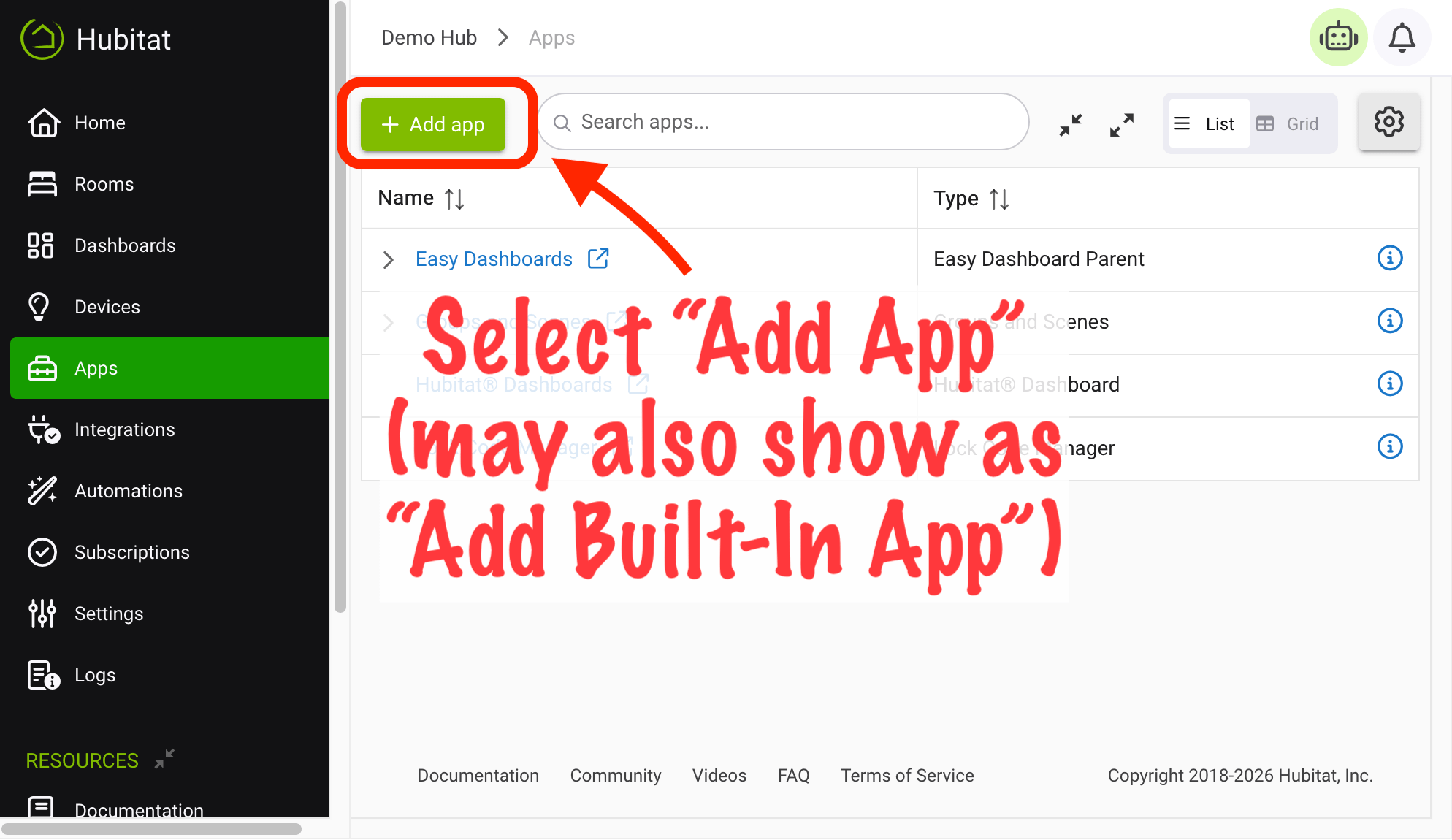
From the sidebar of your hub, select Apps and then select Add Built-In App:
-
Select Preference Manager from the list.
Using Preference Manager
- After installing the app (see above), you will be presented with two options:
- By device type: shows list of all device drivers (types) in use by devices on your hub, then allows selection of one or more devices using this same driver to allow one or more preferences for all selected devices to be changed at the same time
- To use, select By device type, then select the driver on the next page, then select the desired devices on the next page under Available devices. Then, choose the desired option for any preferences, or leave any preference un-set to not change it.
- By preference name: will show list of all preferences grouped by name (an internal name assigned by the developer, but often this will correspond to similar names across devices for common settings, e.g., "Enable debug logging" on most built-in drivers and many popular community drivers; you will see the text description of the preference provided by the driver/developer, and it is normal to see the same or similar preferences listed more than once if different drivers use different names for these preferences internally). This allows setting multiple preferences on devices at the same time, potentially even if the devices use different drivers.
- To use, select By preference name, then, on the next page, select the desired preference. Then, on the next page, select the desired devices under Available devices and provide a new value for the preference to be set for the selected device(s).
- By device type: shows list of all device drivers (types) in use by devices on your hub, then allows selection of one or more devices using this same driver to allow one or more preferences for all selected devices to be changed at the same time
- After making the appropriate selections as above, select Update preference(s) now! to apply the changes. (You will see a progress page as the changes are applied before being returned to this page again.) Select Next to return to the list of options and start over if desired; otherwise, you're done!
NOTE: If you recently changed drivers or do not see an up-to-date list of preferences in the above options, select Reload preference data... on the first page of the Preference Manager app, wait a few seconds for the task to complete, then check again.