Z-Wave Poller
A built-in method to work around older Z-Wave devices that may not accurately report state (e.g., on/off) back to the hub after phyiscal changes (e.g., flipping the switch on or off)
Z-Wave Poller
The Z-Wave poller app corrects a polling issue with certain Z-Wave devices that do not display their state properly, but the issue only affects certain non Z-Wave Plus devices. Older GE dimmers and switches are well known to have this problem when activated manually. If your GE devices pairs as "Generic Z-Wave Dimmer" or "Generic Z-Wave Switch" it is a candidate for needing Z-Wave Poller. Z-Wave Poller only works with devices that pair with these two drivers. To verify that your Z-Wave device is a candidate for Z-Wave poller, active your device manually, and watch the logs to see if the device does NOT register a change of state in the logs. If it doesn't, then it is a candidate for Z-Wave Poller, but if does register a change in the logs, you should not use the Z-Wave Poller app with it.
Installing the Z-Wave Poller app
-
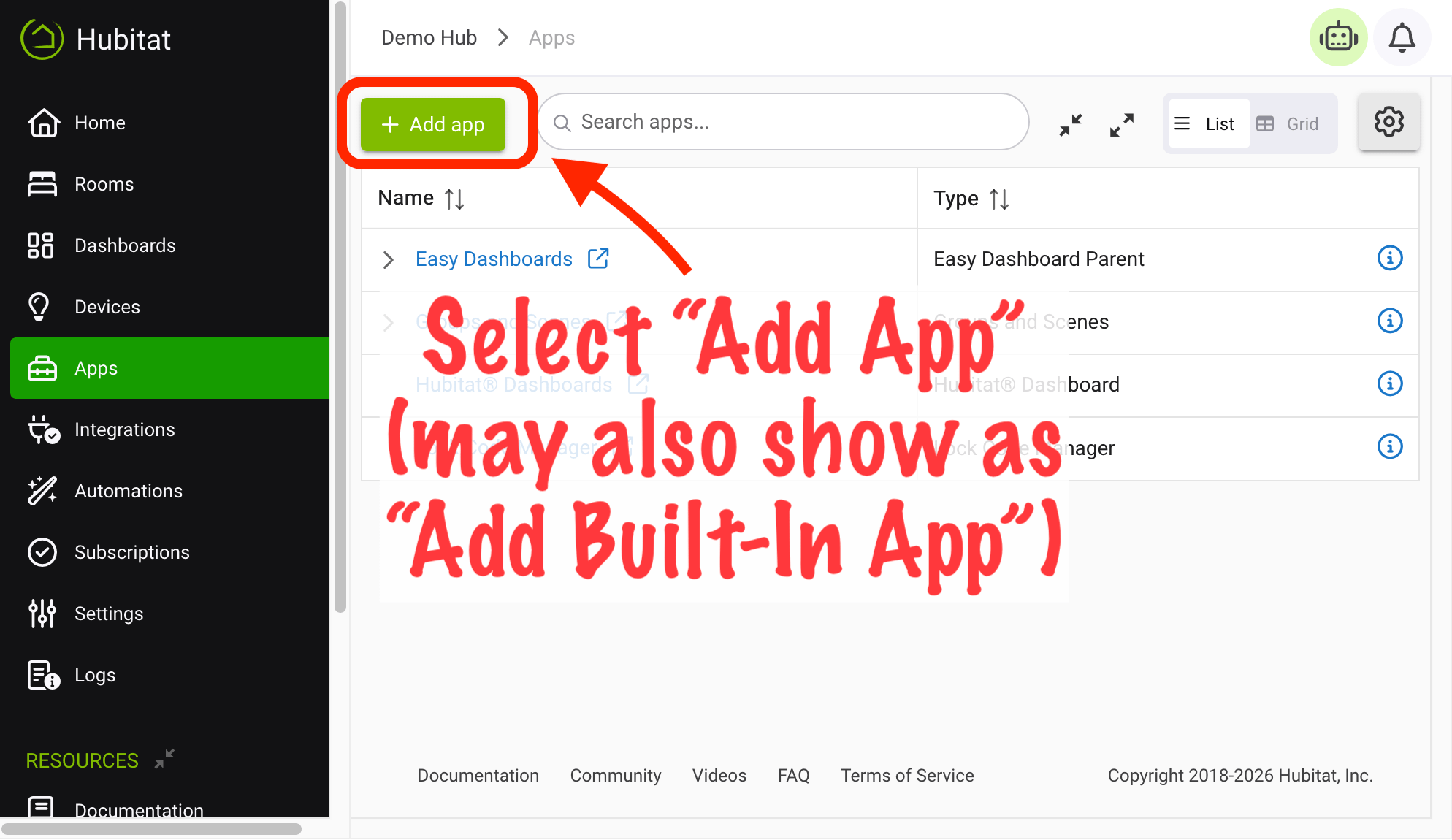
From the sidebar of your hub, select Apps and then Add Built-In App.
-
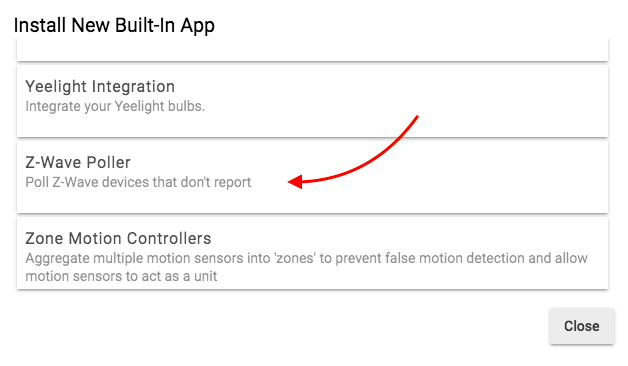
Select Z-Wave Poller from the list of Hubitat Elevation Built-In Apps
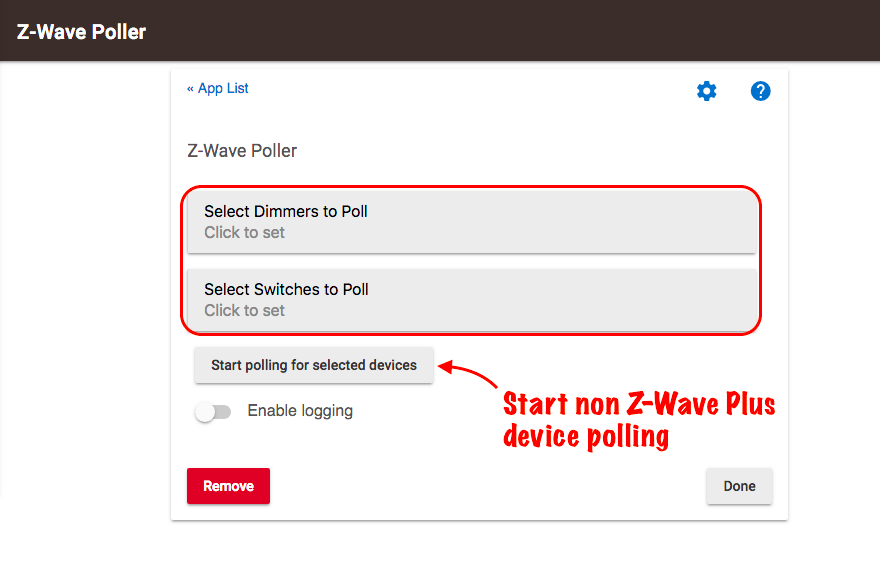
Choose non-Z-Wave–Plus devices that require polling
- Use the Select Dimmers to Poll dropdown to choose the Z-Wave dimmers you would like to poll, then select Update.
- Use the Select Switches to Poll dropdown to choose the Z-Wave switches you would like to poll, then select Update.
- When your devices have been chosen, select Start polling for selected devices.
- You can pause Z-Wave polling at any time by opening the app and choosing either Stop polling for selected devices or Stop All Poling.
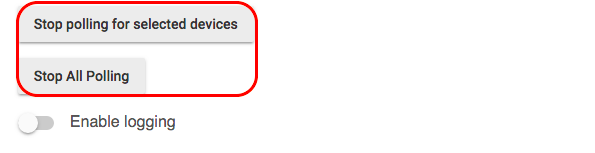
- To assist with troubleshooting, you can also turn on Enable Logging
- When you are finished, select Done.