How to Disable Hub Login Security to Recover Access
If you enabled hub login security and have forgotten your username or password, you can use your My Hubitat account to recover access (if your hub is connected to the Internet)
How to Disable Hub Login Security to Recover Access
If you accidentally lock yourself out of access to the hub because you forgot the username or password after enabling the hub login security feature, you can disable it by using the Advanced settings for the hub in your My Hubitat account.
NOTE: Credentials for hub login security are saved locally, and Hubitat support staff cannot retrieve them for you. The below method is the only way to recover access.
Disable Hub Login Security
-
In a web browser, navigate to https://my.hubitat.com and log in with your My Hubitat account.
- This must be the Hubitat account registered as the admin of the hub from which you want to remove hub login security.
- This is your Hubitat account, not the hub login security account (the latter is local to the hub only). If you forgot the password for your Hubitat account, see Reset a Forgotten Account Password below.
- If you are already logged in when navigating to my.hubitat.com, verify that you are logged in as the correct account; if not, use the Log Out link at the top of the page to log out and log back in with the correct account. (If you are not logged in with the correct account, you will either not see your hub in the list in future steps, or your account will be noted as a guest account and the button to disable hub login security will not appear.)
-
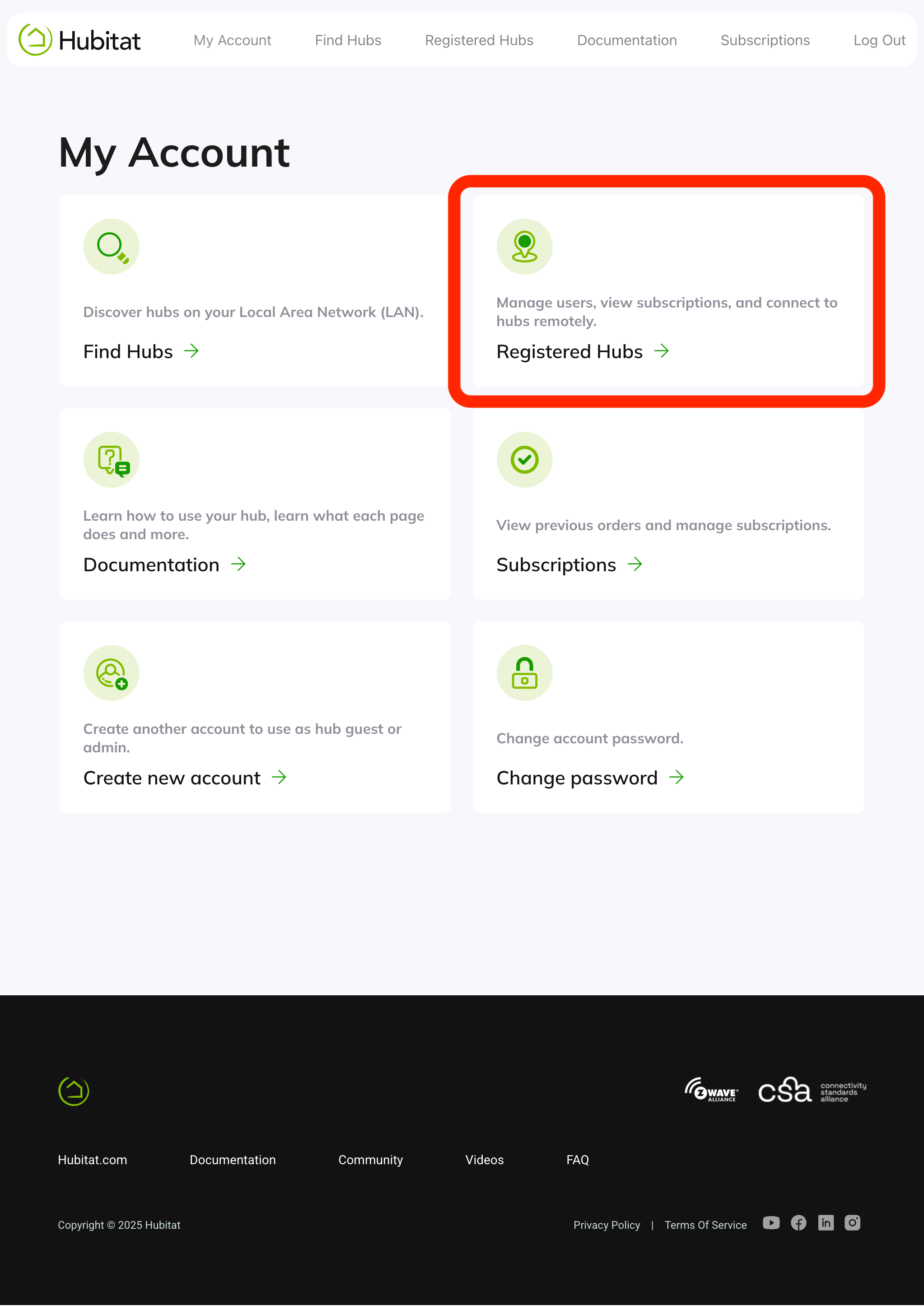
Select the Registered Hubs card to show a list of your hubs that are registered to this account.
-
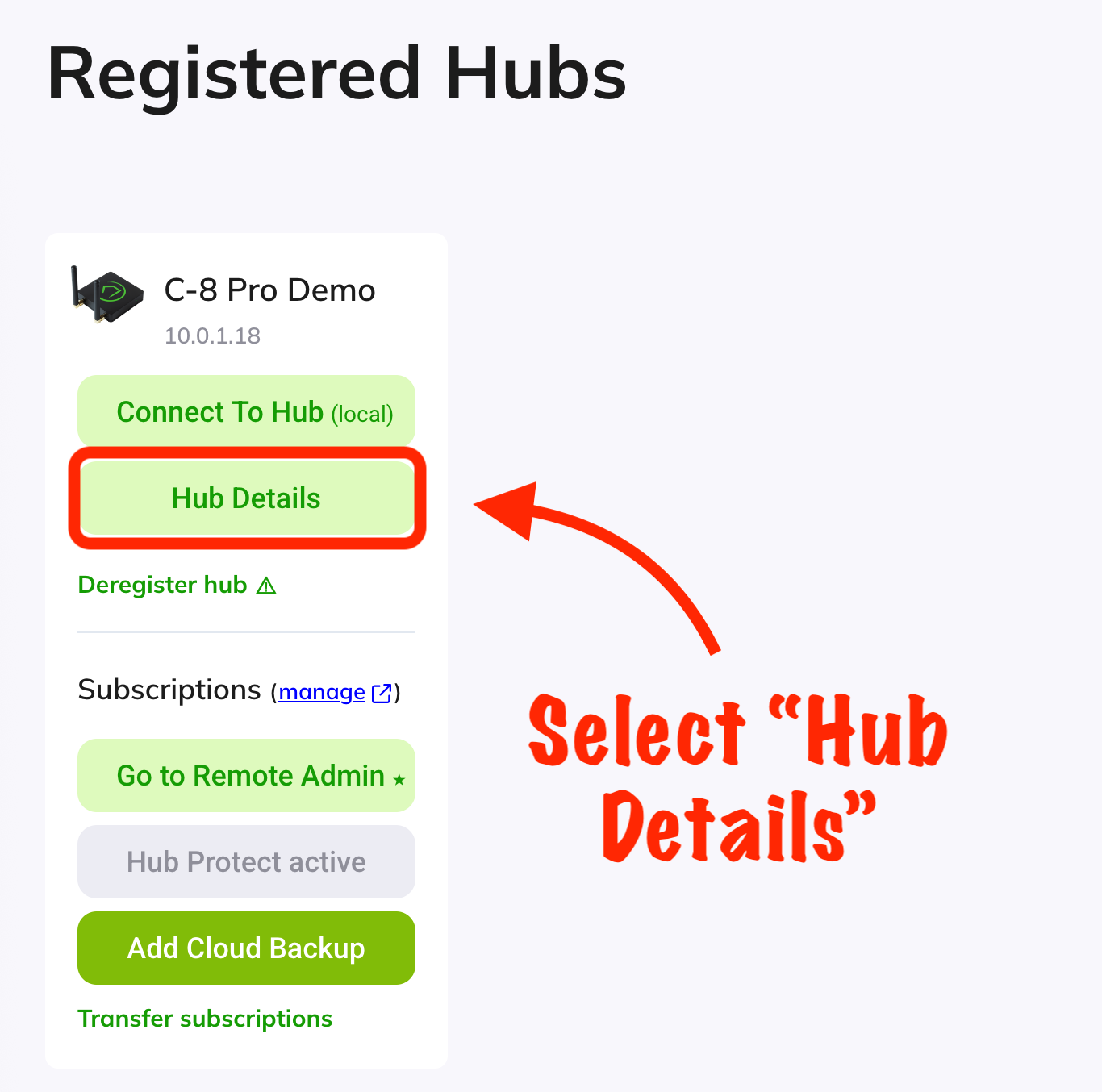
Select Hub Details under the appropriate hub.
-
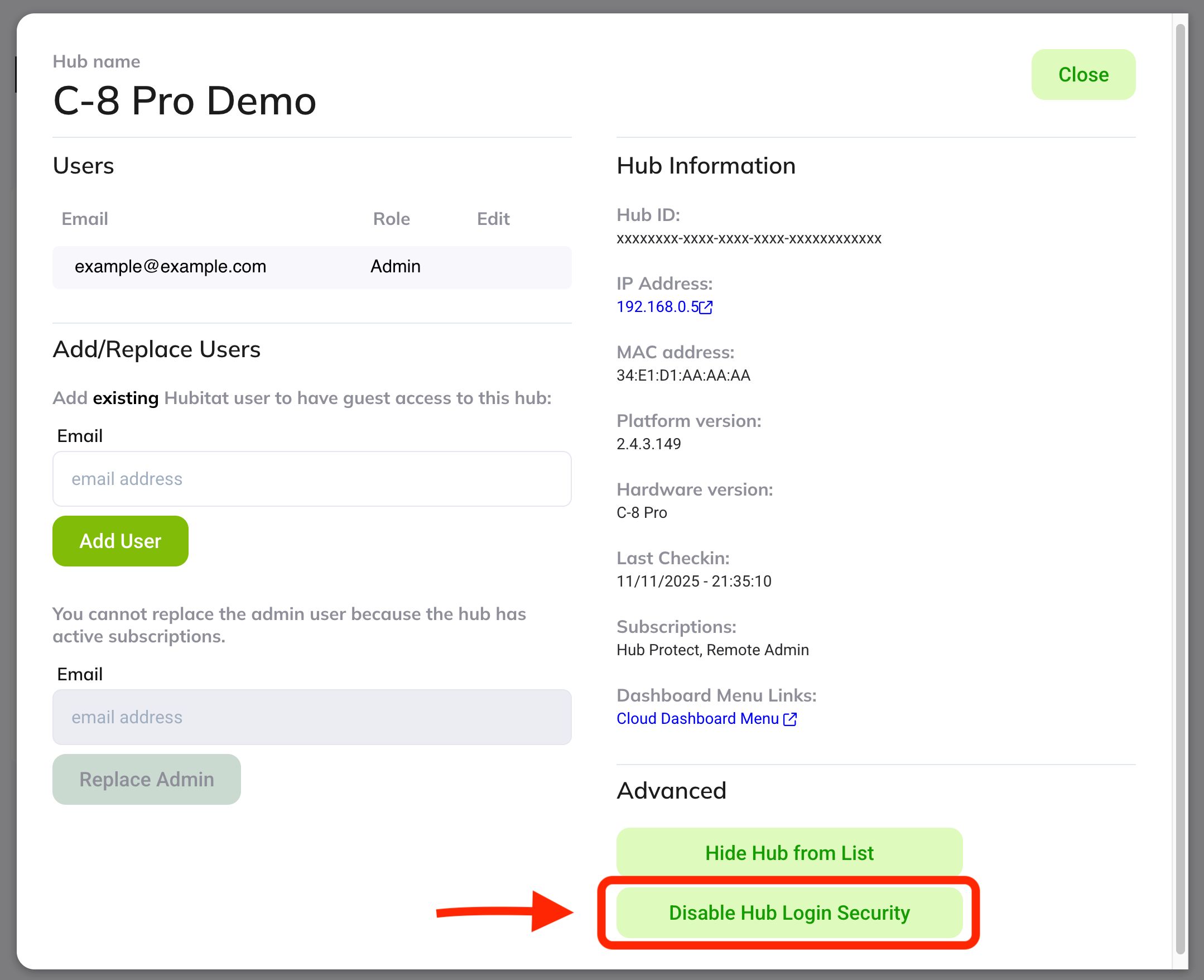
Under the Advanced heading, select Disable Hub Login Security.
Reset a Forgotten Account Password
Follow these step to reset an account password you have forgotten. (These steps refer to the Hubitat or My Hubitat, formerly Hubitat Portal, account that you need to log in to the page above. To reset hub login security, consult the above steps instead; these steps are necessary only if you also forgot your Hubitat account password.)
-
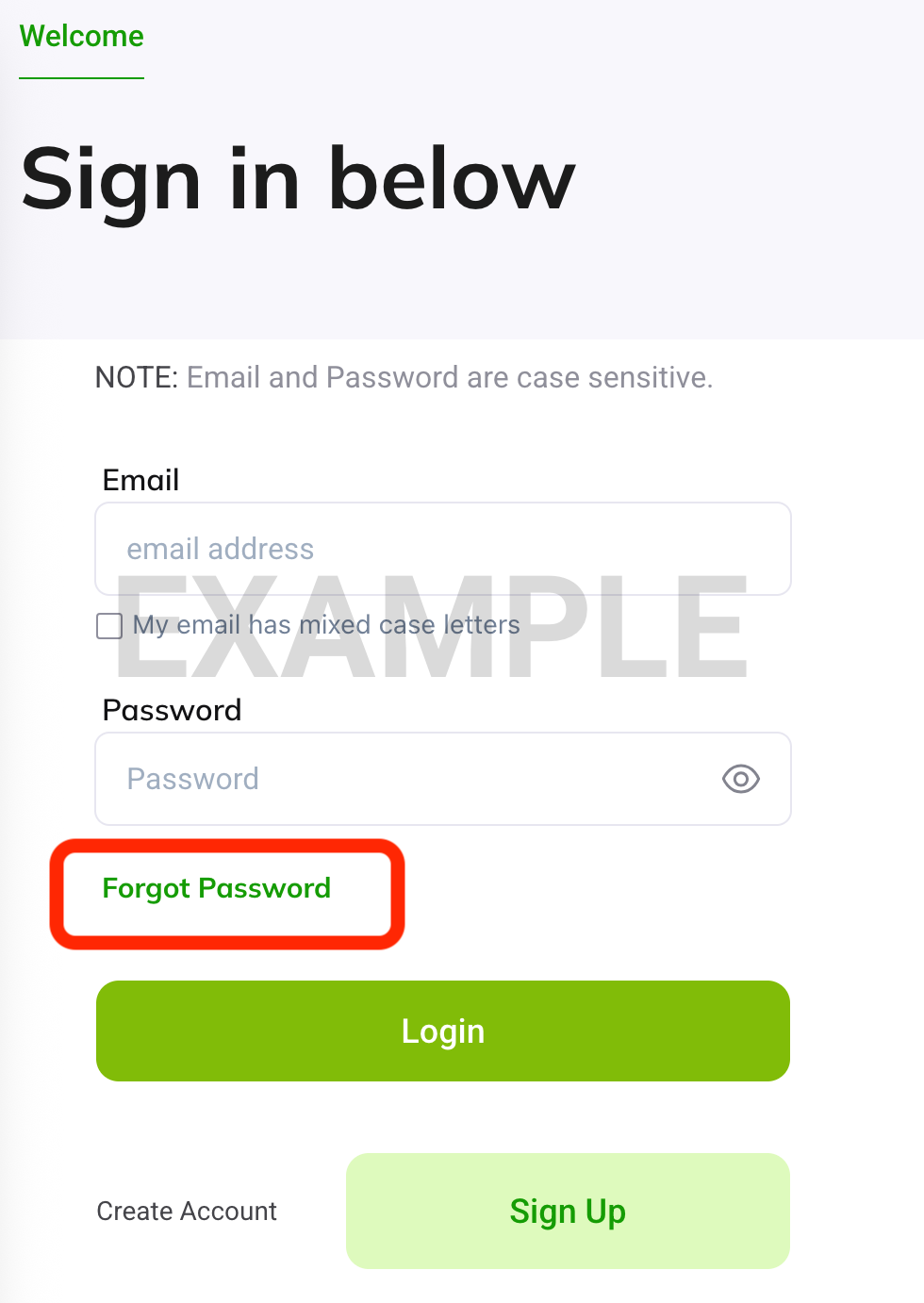
Select the Forgot Password? link.
-
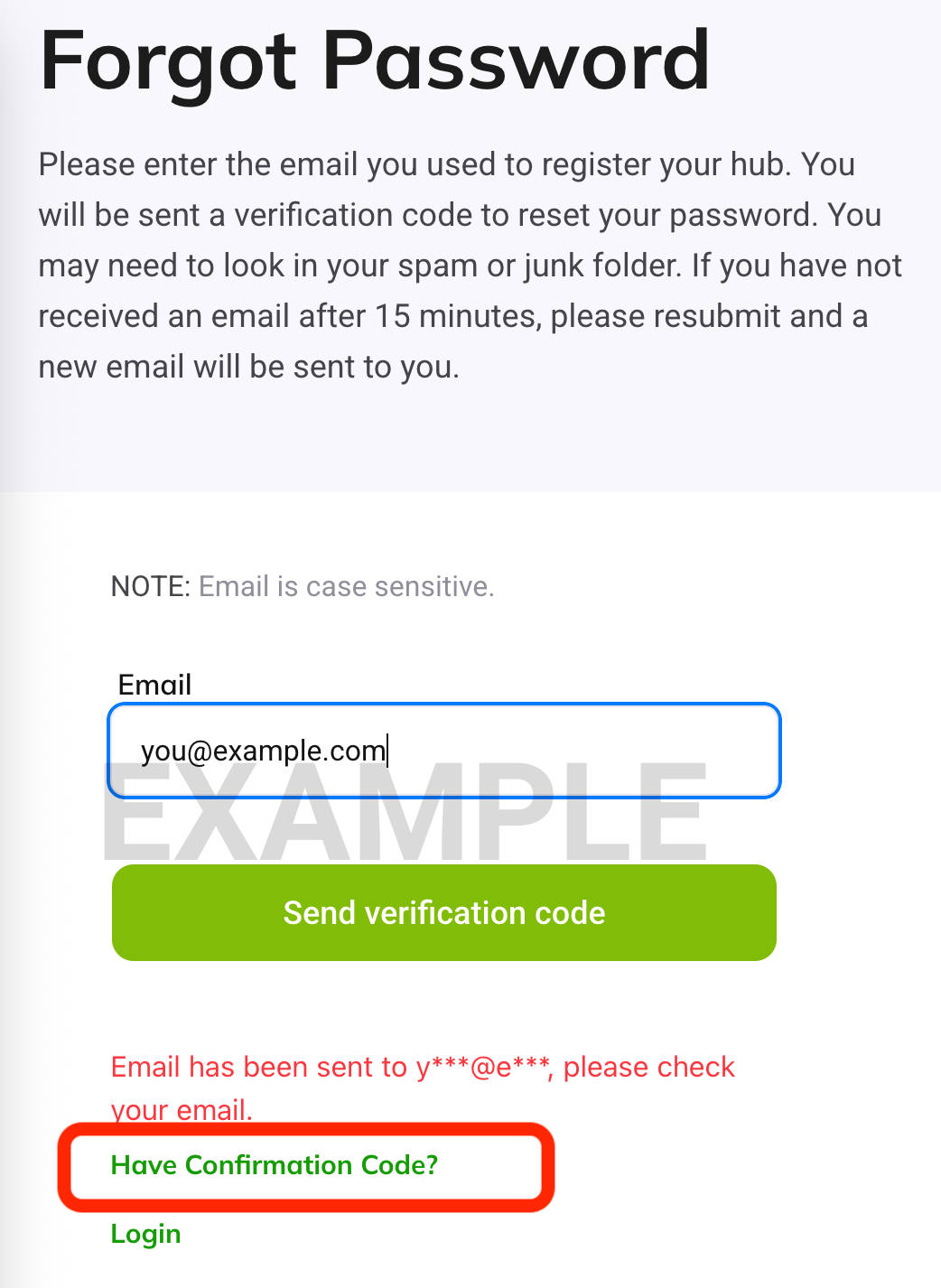
On the next page, enter or verify the e-mail address used to register your hub, then select the Send verification code button.
-
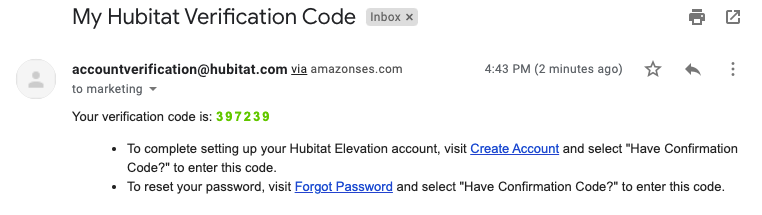
Check your e-mail account for a message from accountverification@hubitat.com. If you do not see the message after a few minutes, be sure to also check your spam or junk folders.

-
Once you have the code, return to the my.hubitat.fom "Forgot Password" page, and select the Have confirmation code? link.
-
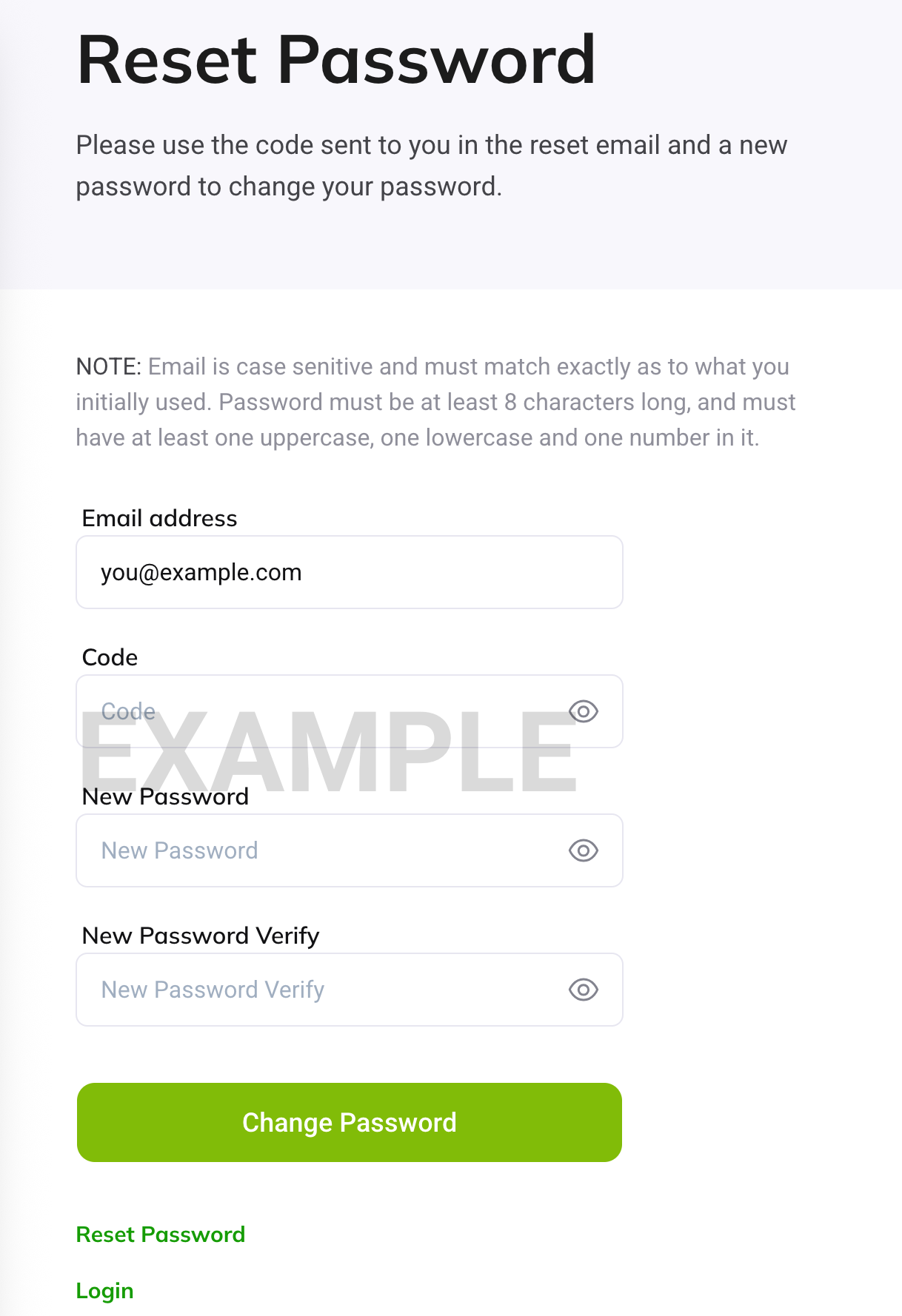
Enter the verification code that was sent to your e-mail account in the Code field, and ensure other fields are filled in as desired (including your new password and the new password again to confirm). Then, select Change Password.