Hub Login Security (Settings)
Learn how to enforce password protection on access to your hub's administrative interface
The Settings > Hub Login Security page is where you can create a user account to enforce password-protected access to your hub's administrative interface, even from your own LAN. This account is only to secure your local hub UI; it is not used to log into the mobile app or your My Hubitat account and is entirely separate from such an account you can optionally create to use these features.
Enabling Hub Login Security
-
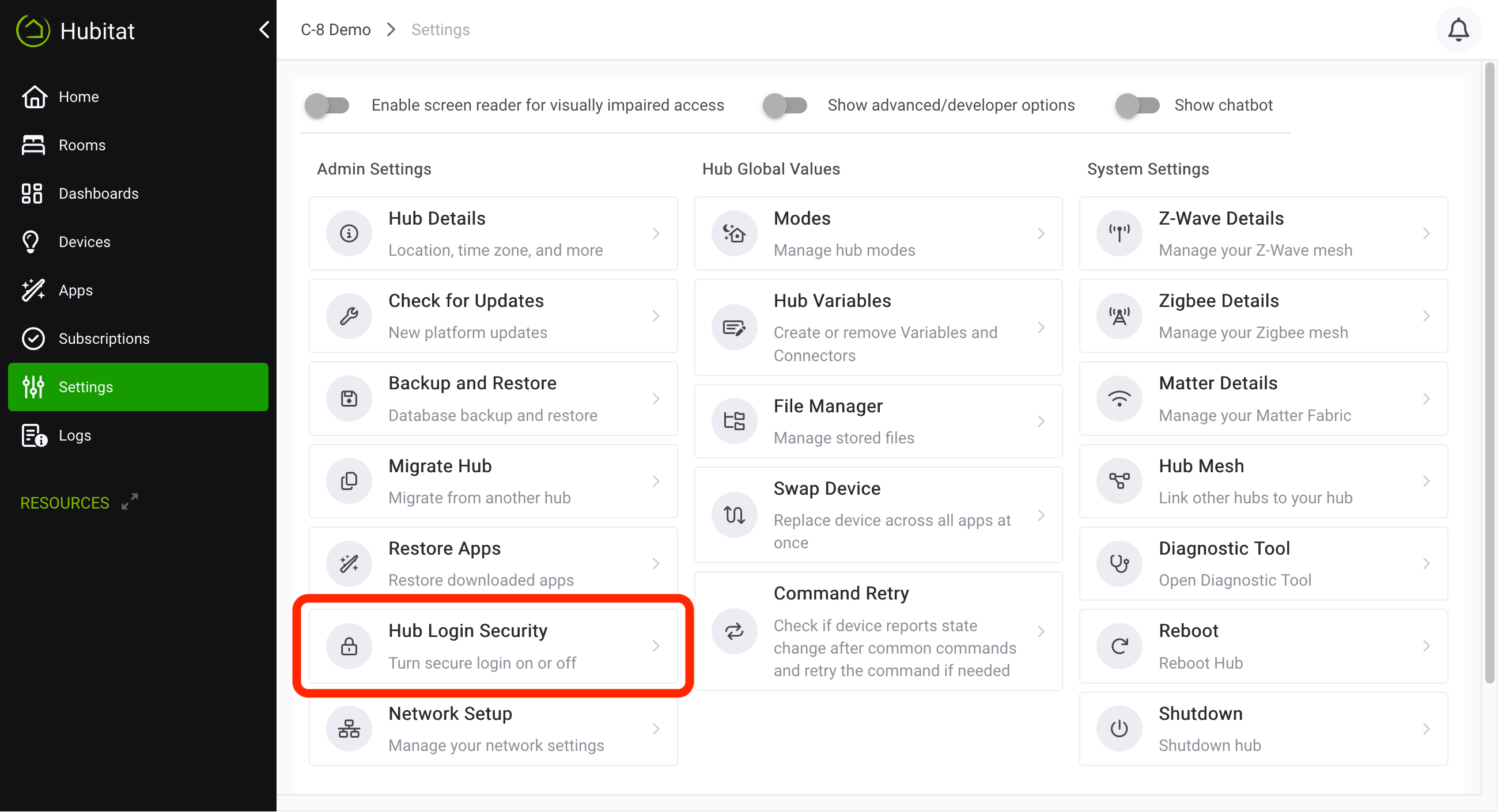
To get started, go to Settings and select Hub Login Security.
-
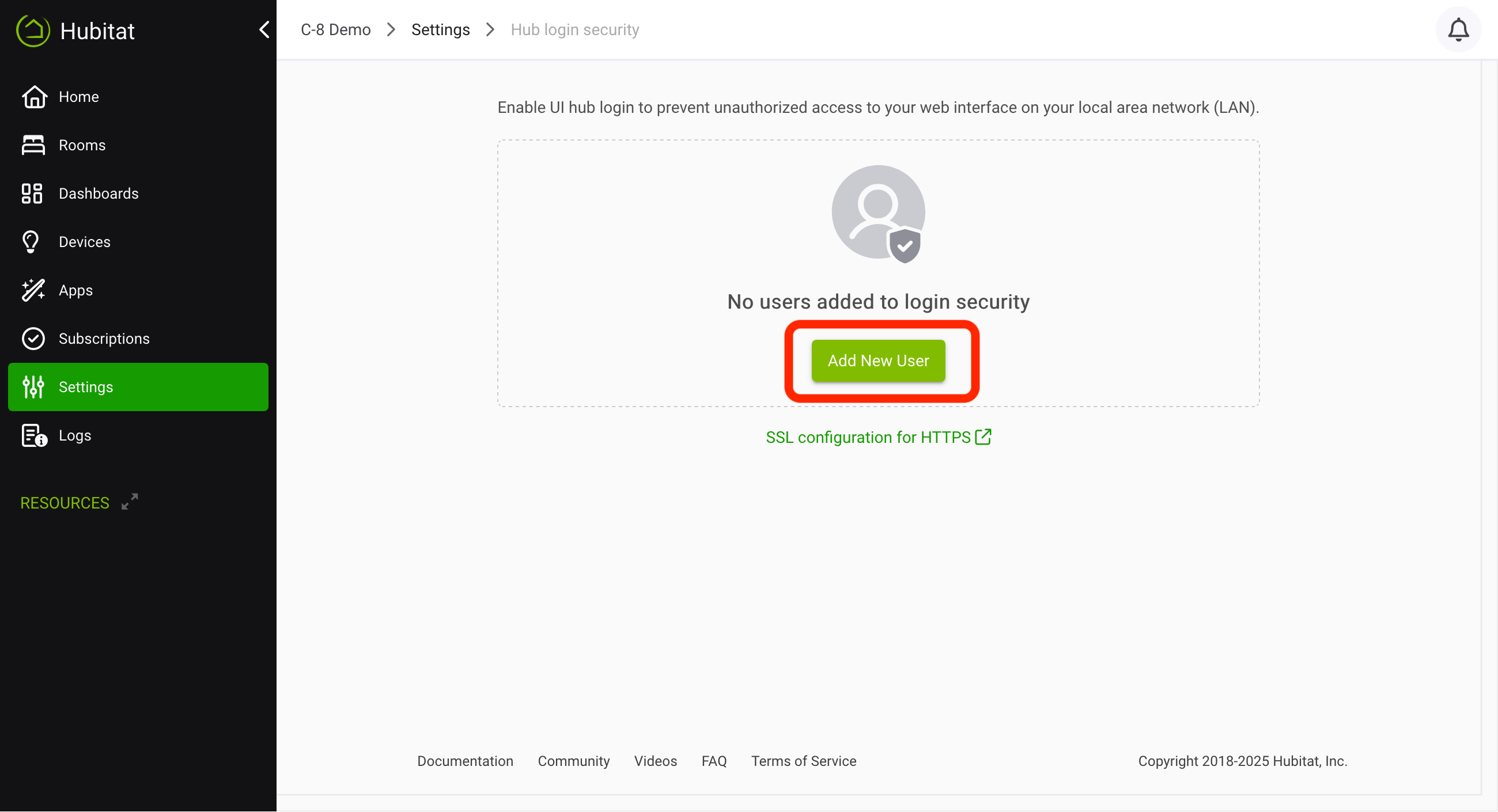
Select Add New User:
-
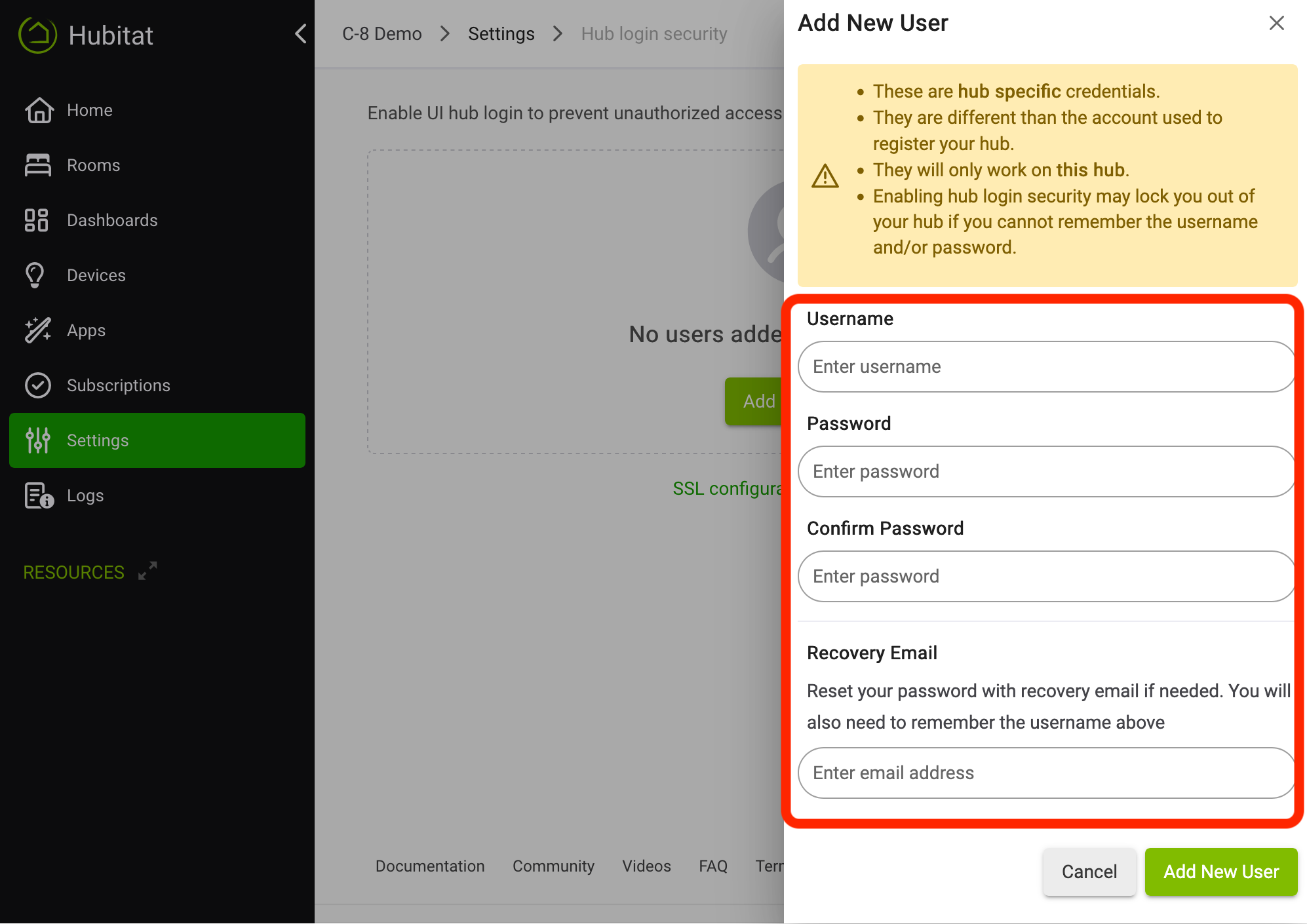
Follow the propmts. Note that the username and password are both case-sensitive:
-
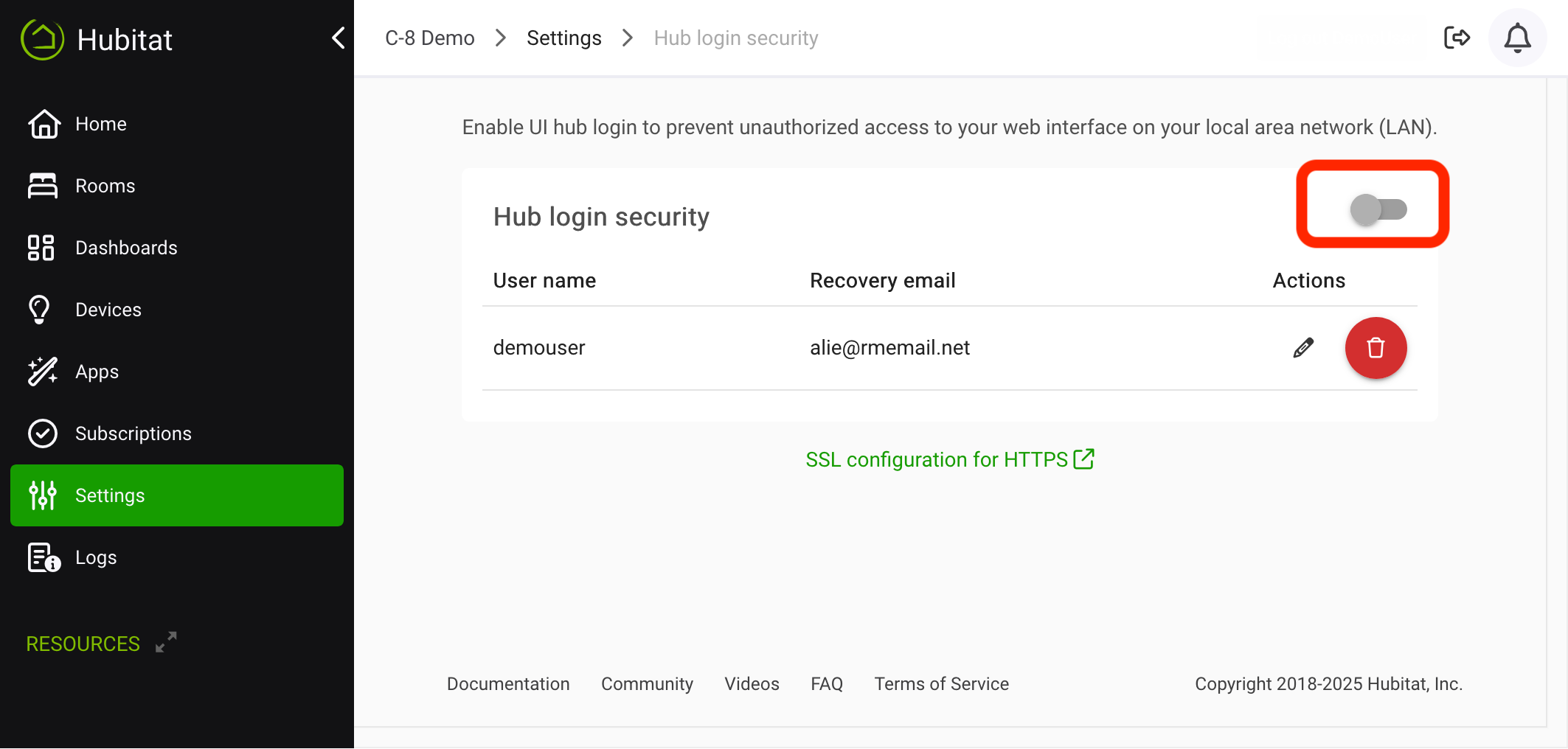
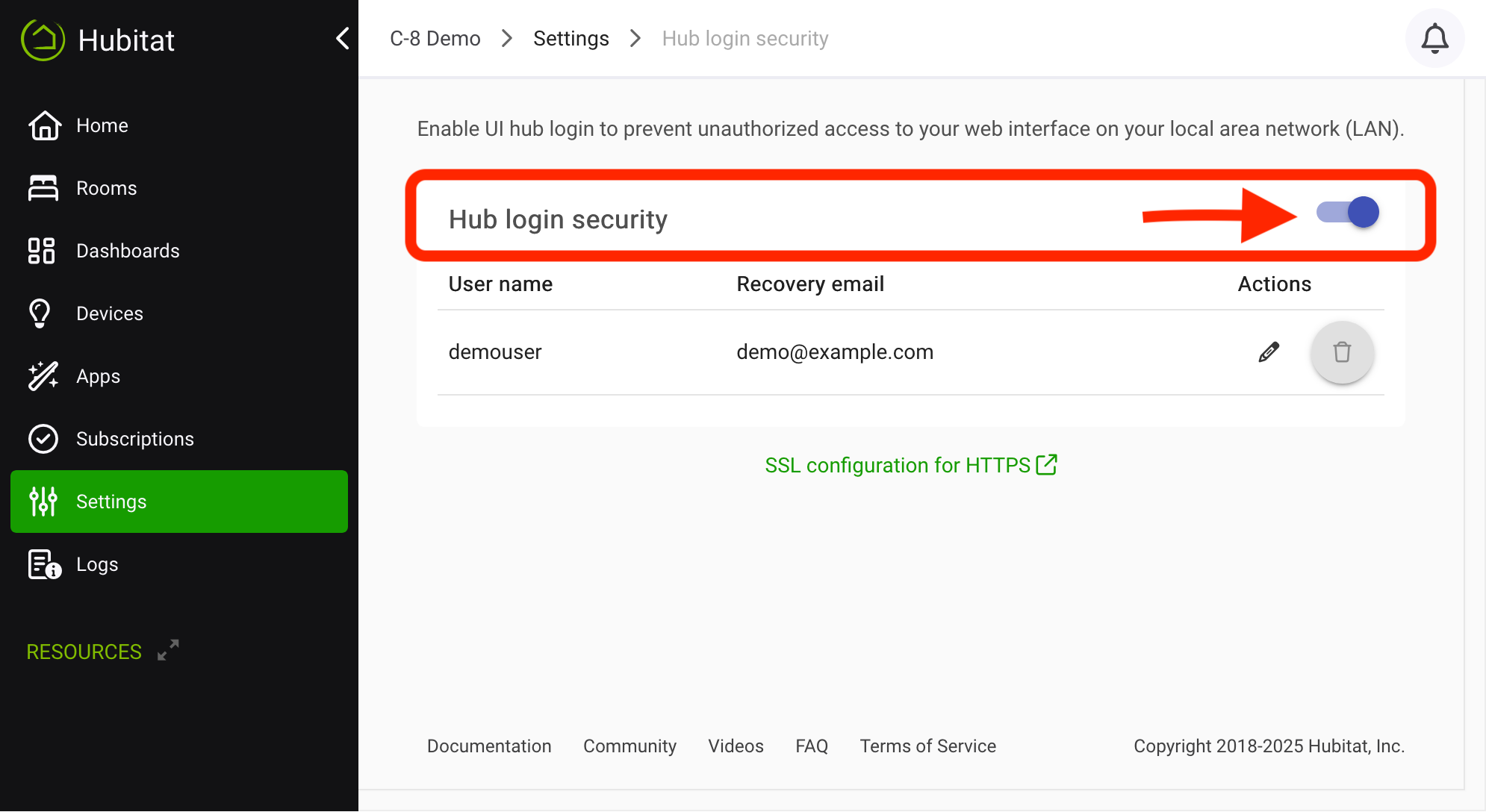
To actually enable hub login security and restrict login with a username and password, activate the Hub Login Security toggle at towards the top of the page:.
-
You will be immediately required to login with the username and password you created:
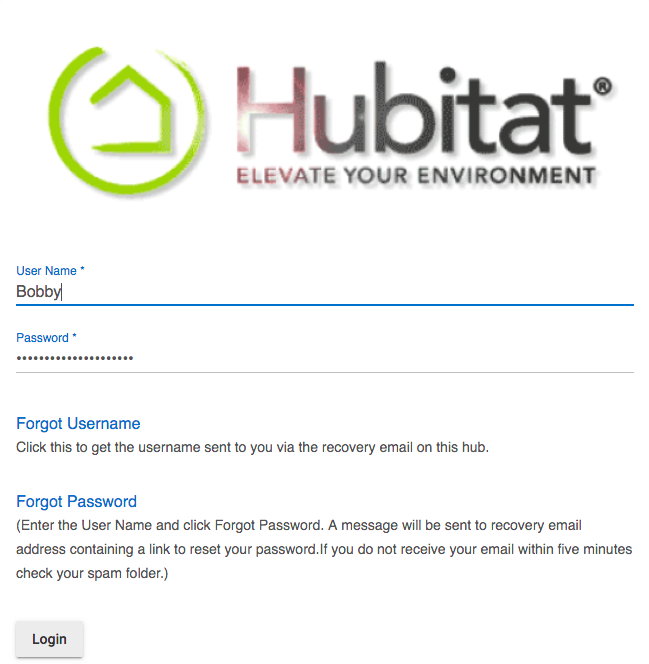
NOTE: Enforcing Hub Login Security may lock you out of your hub if you cannot remember the username and/or password you created. Ensure your recovery email is accessible and up to date, or use the online Hubitat account registered as the hub owner to recover access.
Editing a User
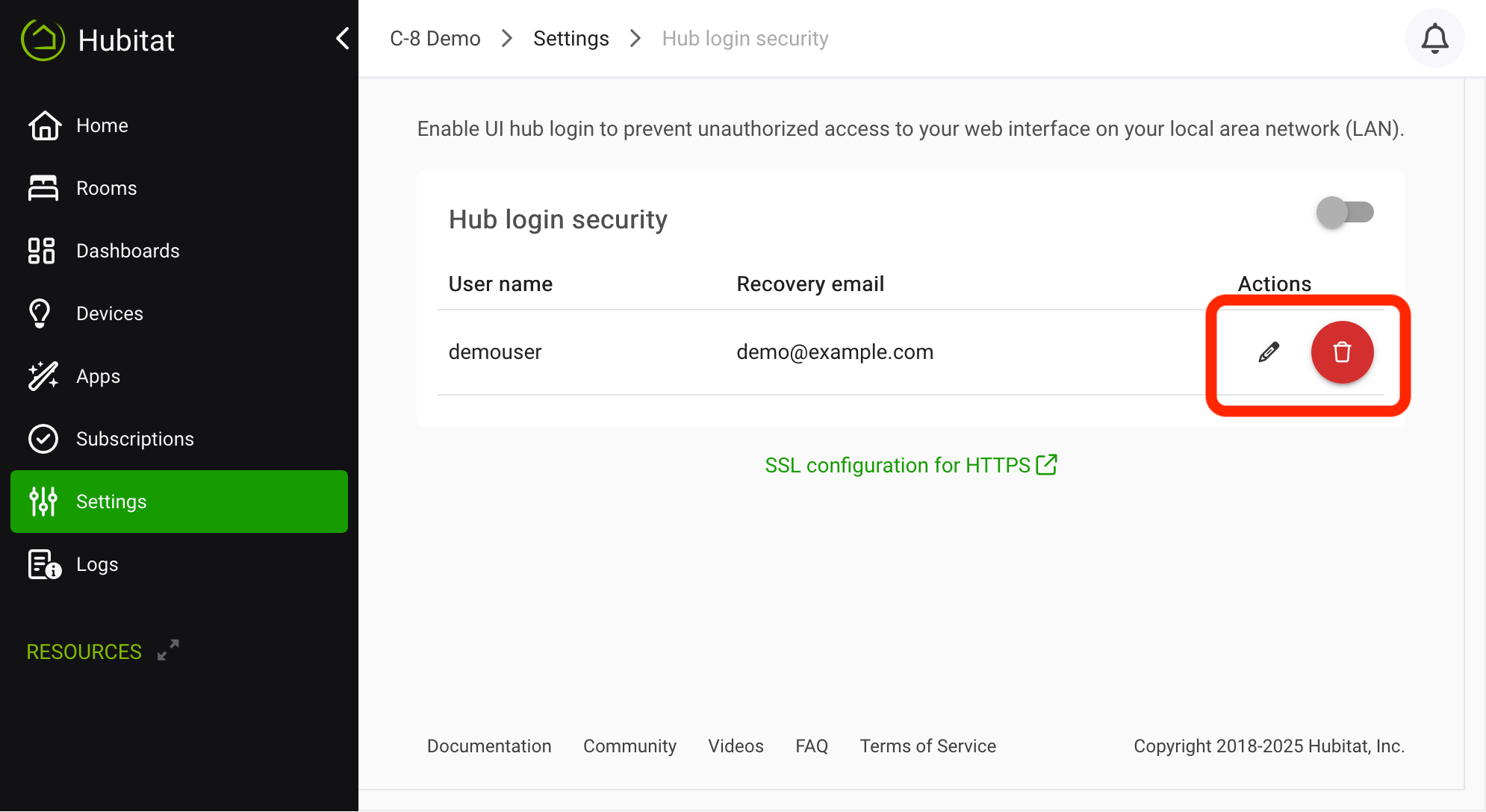
Once created, you may edit the password or password recovery email by selecting the pencil icon. The user can be deleted by selecting the trash icon. You cannot change the username (but you can remove the user and create a new one with the desired name).
How to Log Out
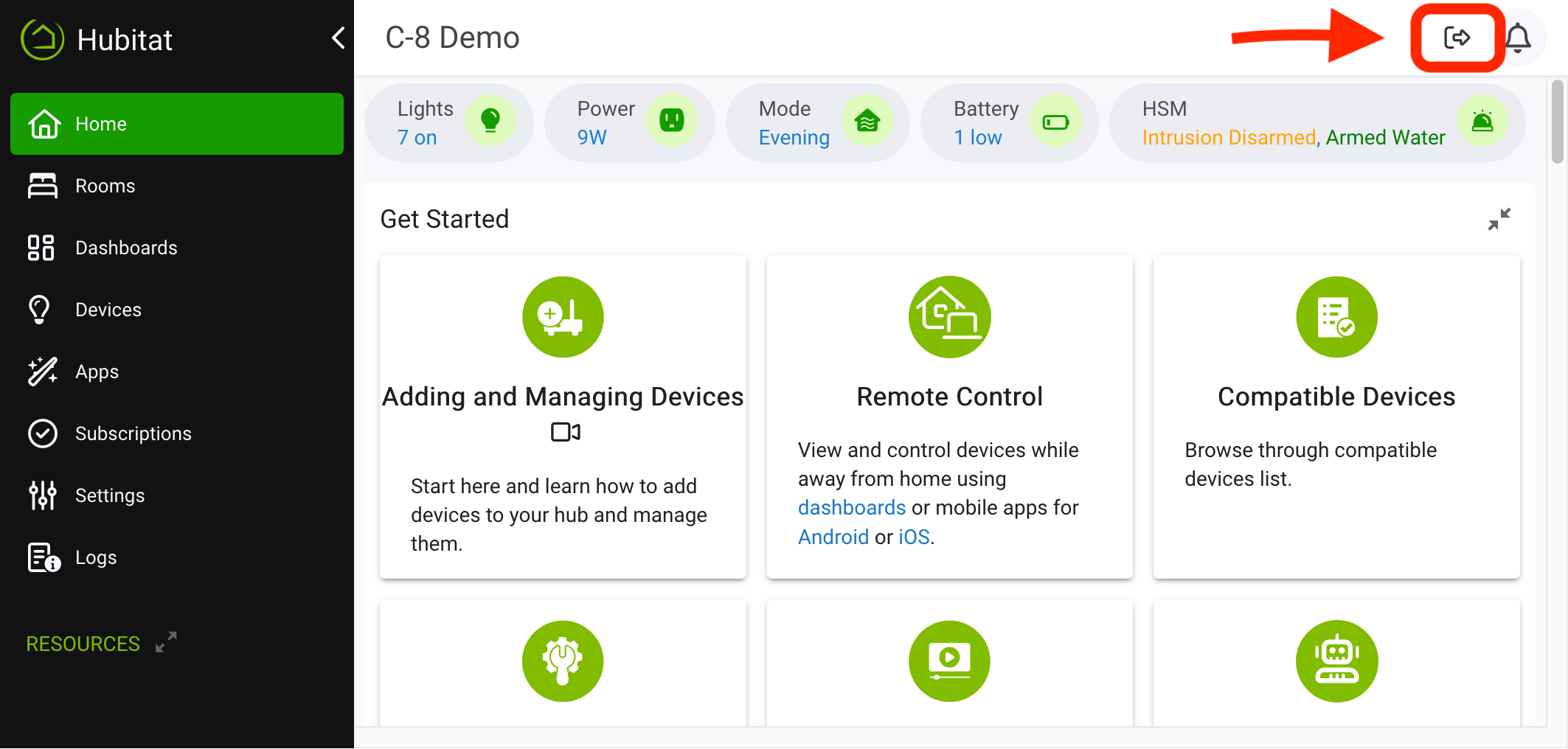
To log out, select the log out (square/door with arrow icon) in the top right of the hub interface:
Disabling Hub Login Security
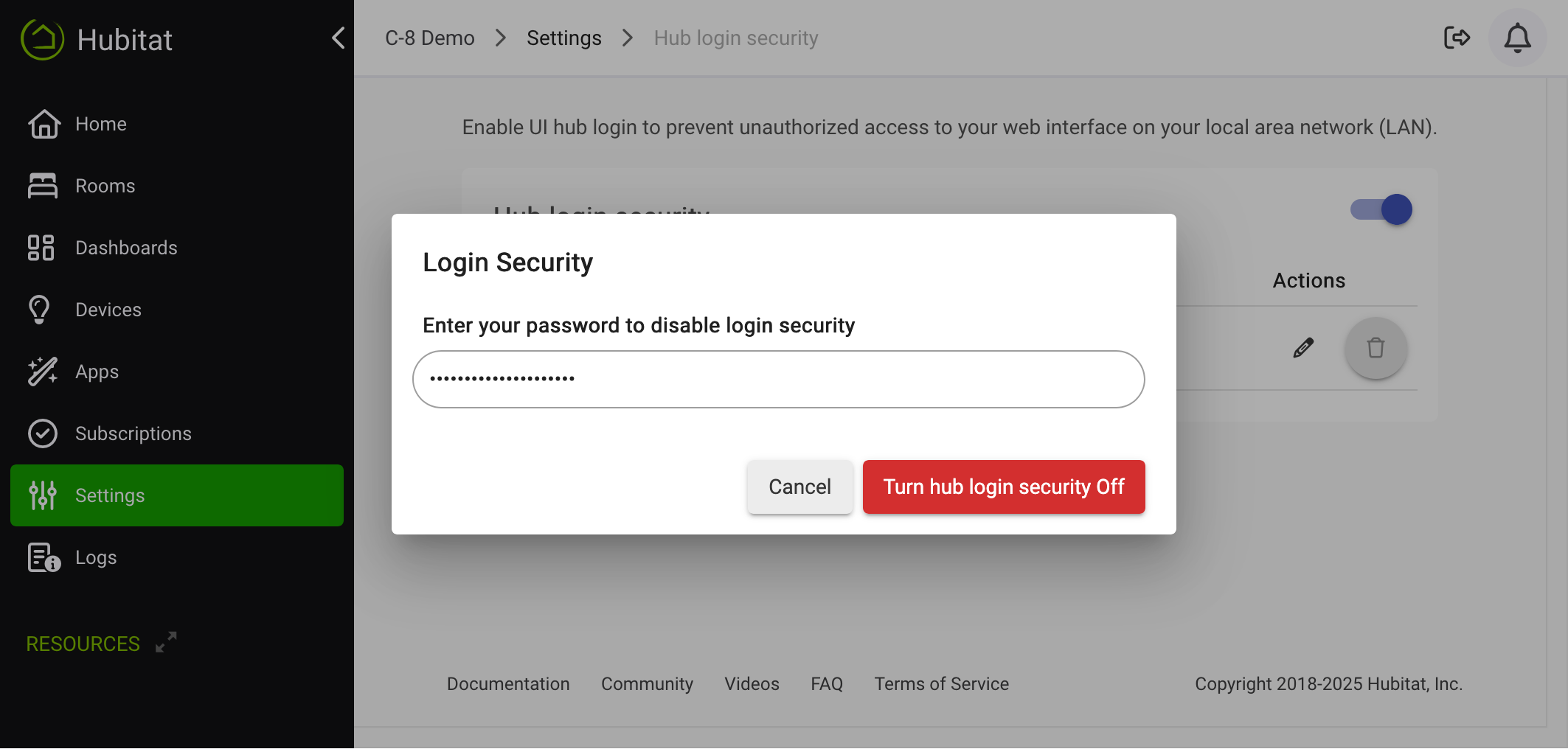
To disable Hub Login Security, turn off the "Hub Login Security" toggle. You will be prompted to enter your password to confirm:
When hub login security is not enabled, the toggle will appear in the "off" state: